

An app by Andrew MastracchioVisit the main site

Give your coding agent the bug list.

DevBench for Mac has an MCP server built in. Add it to Claude Code, Codex, Cursor, VS Code or Claude Desktop once, and your agent can read your bugs, file the ones you mention, and update each item it fixes: the status, the cause and fix, and a line for the release notes. It can record builds and release steps too. The server runs only on your Mac.

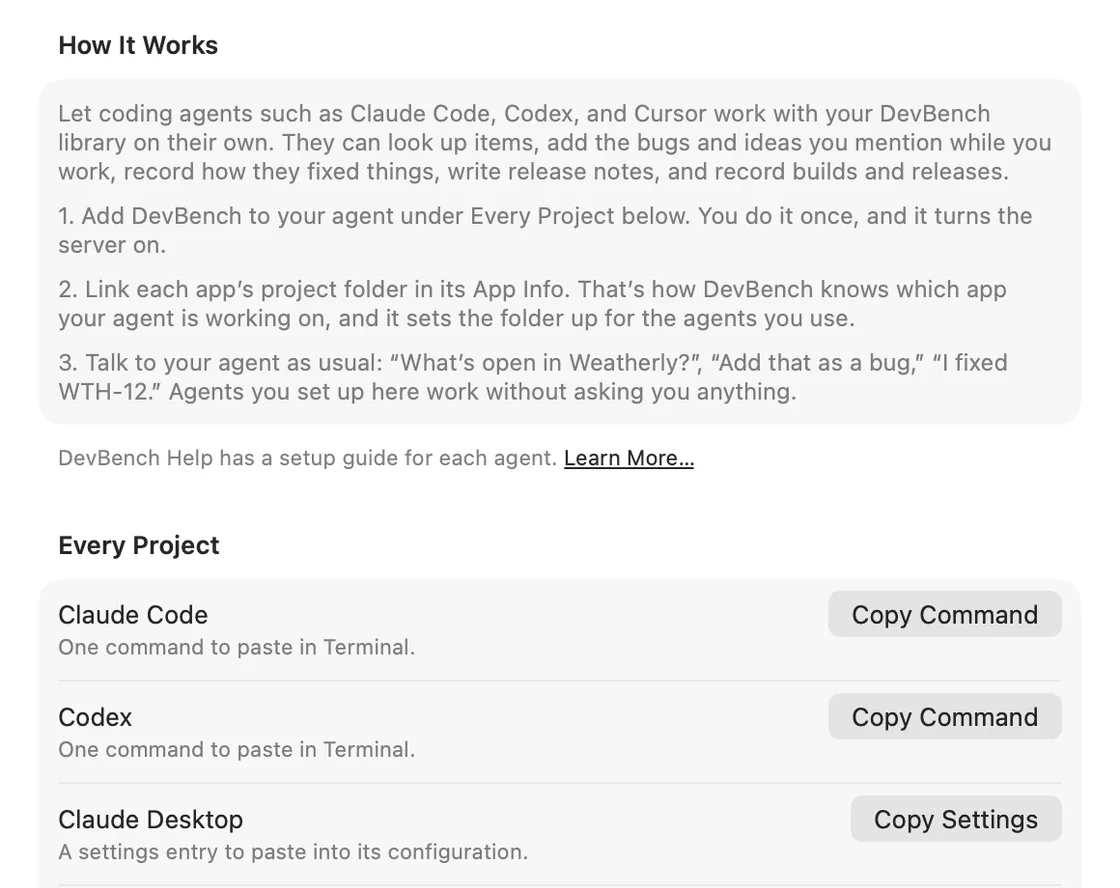
Settings ▸ Coding Agents on the Mac: how it works, and Every Project, with a button to add DevBench to Claude Code, Codex and Claude Desktop.

How it works

  1. Add DevBench to your agent.

    In DevBench for Mac, open Settings ▸ Coding Agents. Under Every Project, copy one command for Claude Code or Codex, or choose Add to Cursor or Add to VS Code. You do it once, and it turns the server on.

  2. Link your project folder.

    Link each app’s project folder in its App Info. That’s how DevBench knows which app your agent is working on, and it sets the folder up for the agents you use.

  3. Ask what’s open.

    Start a new session in the project folder and ask “What’s open in Weatherly?”

  4. Let it close the loop.

    When it fixes a bug, it writes down the cause and fix, moves the item to Testing and adds a release note. Agents you set up this way work without asking.

One bug, start to finish.

What your agent can do.

Read, add and edit items, versions and builds, record the cause and fix of each bug it resolves, write release notes, and record builds and release steps. It gets 31 tools and slash commands such as /mcp__devbench__whats_next. Every change is signed with its name.

Guardrails you set.

What an agent deletes goes to Recently Deleted, and only you delete anything for good. Shipped versions stay locked. In Settings ▸ Coding Agents you can have agents ask before recording a build, or never record one, turn off release moves, or turn an agent off.

A plugin for Claude Code.

Save the DevBench plugin from Settings ▸ Coding Agents and install it in Claude Code. It connects DevBench and adds a skill that teaches the agent when to use it: file the bugs you mention, report its fixes and follow your build and release settings.

It stays on your Mac.

The server listens on your Mac only, through a small helper or over HTTP, and every request needs an access token kept in the Keychain. DevBench has no servers of its own.

Questions, answered.

Which coding agents work with DevBench?

Claude Code, Codex, Cursor, VS Code and Claude Desktop, each added once for every project from DevBench for Mac, with one copied command or one click. Any other tool that supports MCP, the Model Context Protocol, can connect too.

Can a coding agent change things without asking?

Yes, that’s the point: an agent you set up in DevBench updates the items it works on as it goes. You keep the last word. Every change is signed with the agent’s name, what it deletes goes to Recently Deleted, shipped versions stay locked, and in Settings ▸ Coding Agents you can stop agents from recording builds or release steps, or turn one off. An agent that connects some other way can read, and DevBench asks before its first change.

Does it work with agents on iPhone and iPad?

Agents connect through the Mac app, where you write code. Anything they change syncs to your iPhone and iPad through iCloud.

What if my agent doesn’t support MCP?

Use Export for Coding Agent. It saves the bugs as Markdown files with their screenshots and a prompt, and the agent’s resolution file brings its fixes back into DevBench.

Set up your agent once.

Coding agents connect through DevBench for Mac. Your iPhone and iPad stay in sync through iCloud.

Join the TestFlight beta