
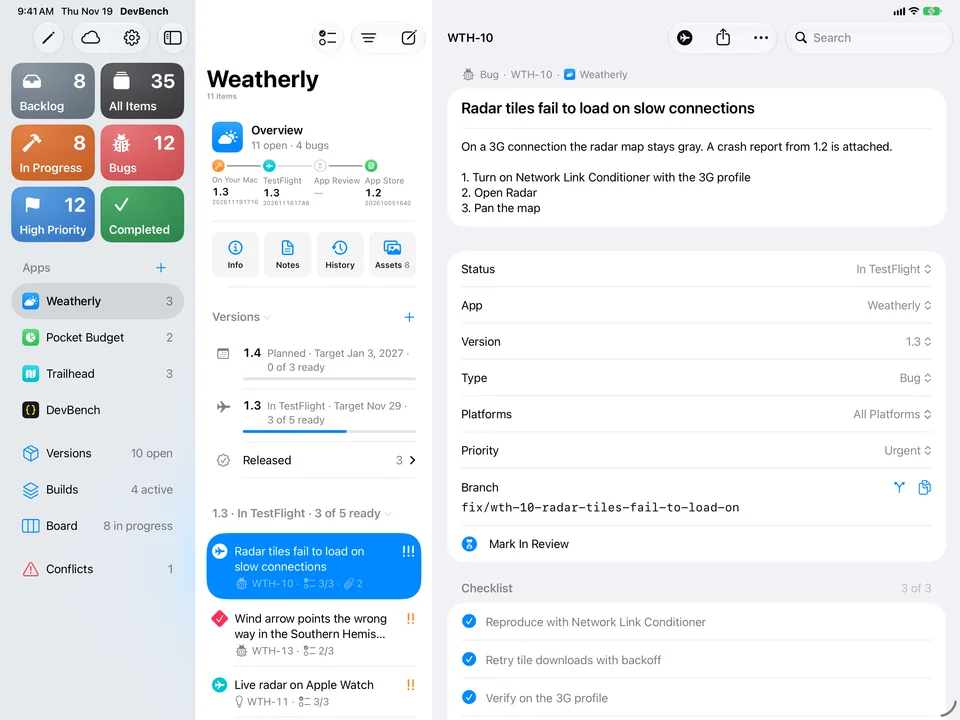
iPad
Sort it out on the couch.
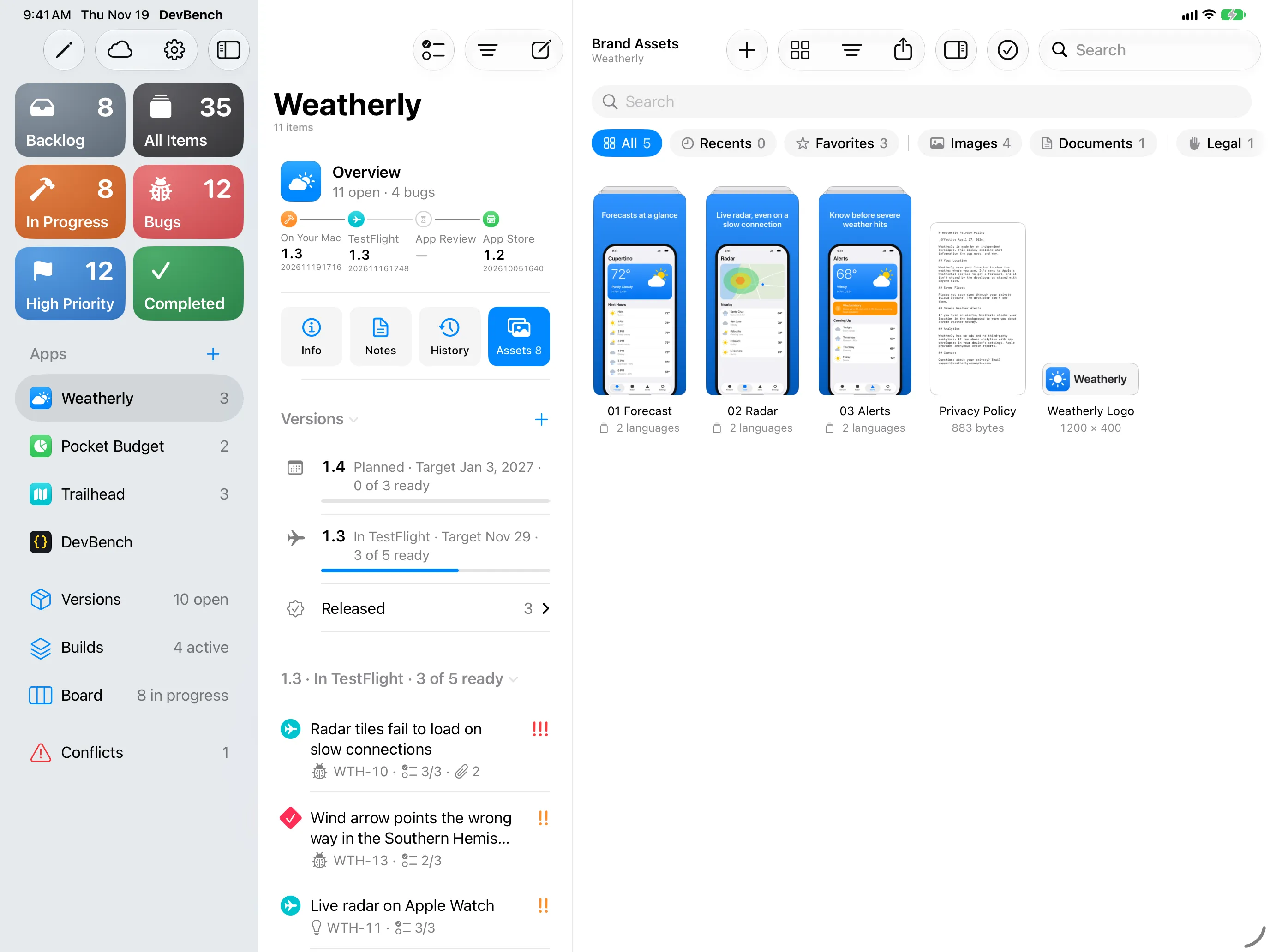
The same lists and bugs, with drag and drop for screenshots.

 An app by Andrew MastracchioVisit the main site

For people who build apps faster than they can keep track of them. Your coding agent reads the bugs straight from DevBench, fixes them, then updates everything itself: the status, the cause and fix, even your release notes.
Coming soon to the App Store
Join the betaWorks withClaude CodeCodexCursorVS CodeClaude Desktopand any app that speaks MCP
DevBench has MCP built in. That’s the standard way coding agents like Claude Code, Codex and Cursor plug into other apps. Once yours is connected, it reads your list, files the bugs it finds and updates every item it touches, while it works. You don’t have to remind it, and you don’t have to tidy up after it.
“What’s open in Weatherly?” Your agent pulls the list straight from DevBench, screenshots and notes included.
It fixes the bug in your project, like it always does. Spots another one on the way? It files that too.
It marks the bug fixed, writes down what caused it and how it was fixed, and adds a line for your release notes.
Ask it to record the build, log the TestFlight upload or draft What’s New. Every item moves along with it.
There are no commands to learn. Ask the way you’d ask a person, and your agent does the DevBench part.
What’s open in Weatherly?
 The open items, most urgent first.
Add that as a bug.
A new bug, with what you just described.I fixed WTH-12.
Marked fixed, with the fix written down.What should I work on next?
A suggestion, without changing a thing.Attach the crash log.
The file, added to the right item.Write the release notes for 1.3.
What’s New, drafted from every fix.Are we ready to submit?
What’s ready, what isn’t, and your checklist.Log this session.
What got fixed, found or left for later.No config files to edit and no server to run. If you can paste into Terminal, you can do this.
On your Mac, open Settings ▸ Coding Agents. Copy one command for Claude Code or Codex, or click Add to Cursor. The welcome tour walks you through it.
One click in App Info. It’s how DevBench knows which app your agent is working on.
Start a new session in that folder and ask “What’s open?” DevBench shows you when it connects.
Your agent works on its own, but never behind your back.
Agents connect on your Mac and nowhere else, and only once you’ve added one.
What an agent deletes goes to Recently Deleted. Only you can delete for good.
Each item’s history shows which agent changed what, and when.
Released versions and builds are locked, so history can’t be rewritten by accident.
Stop agents from recording builds or release steps, or turn one off entirely.
DevBench never uploads a build or submits your app. It keeps the record.
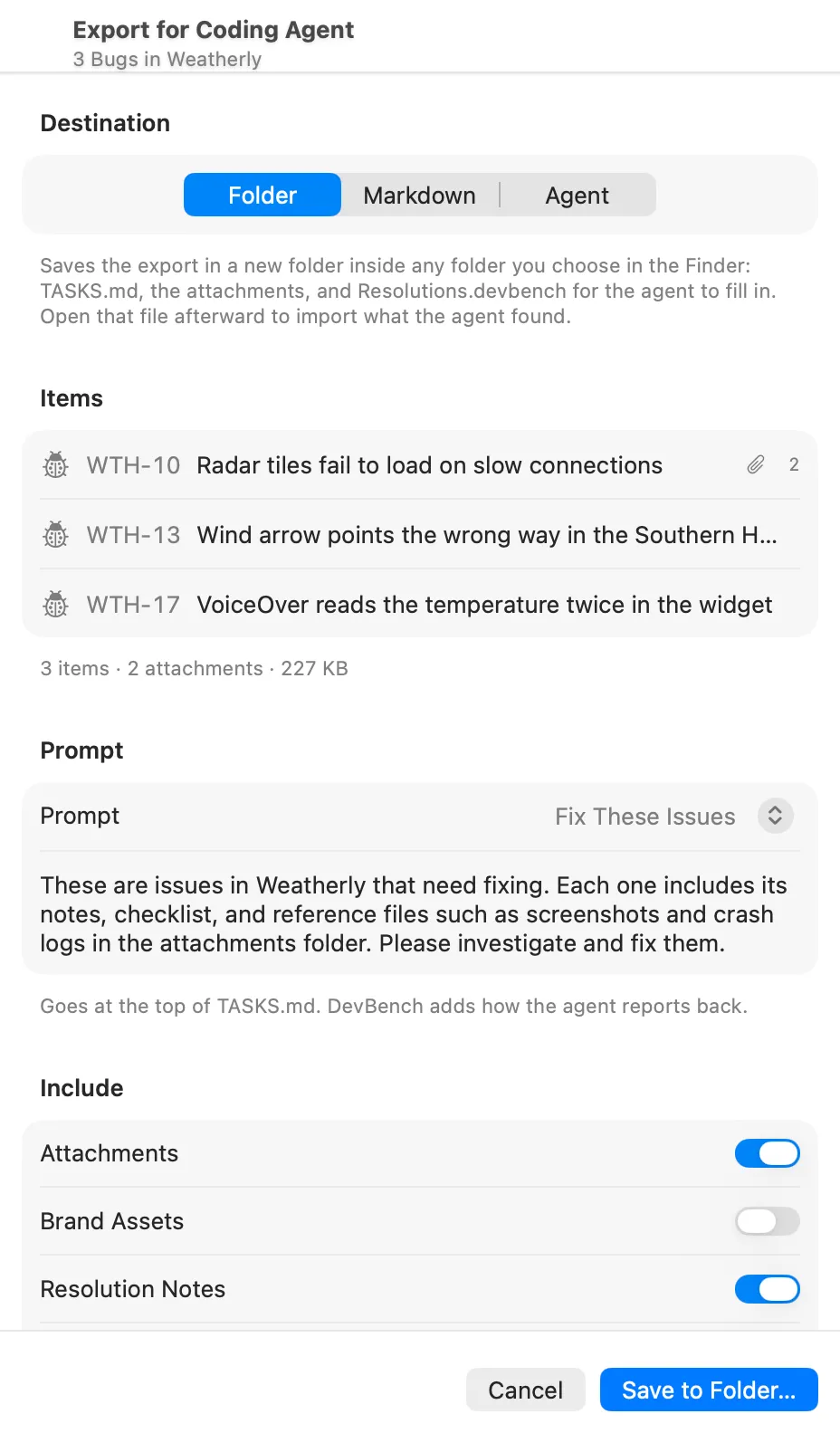
Select your bugs, choose Export for Coding Agent, and pick where to save the items to. DevBench exports markdown files with each item’s notes, checklists, screenshots, and a prompt that tells the agent where to look and what to do. When the agent is done, it writes a resolution file. Drop that back into DevBench and each exported bug gets updated with a status, notes, and more. It works on iPhone and iPad too.
AI made the building part fast. It did nothing to help you remember that idea you had at 3am, the bug you found last week, or a way to keep everything organized.
DevBench has the answer to every one of these, so you don’t have to.
Notice something while you’re testing? Take a screenshot, mark it up, tap Share and pick DevBench. Give the bug a name, a description, and priority and DevBench remembers it for you.
Take a screenshotMark it up if you like.
Share to DevBenchText, links and crash logs work too.
SaveTitle, app, kind, priority. Done.
Hands full? There are other ways in:
DevBench works with Siri, Shortcuts and Spotlight. Add a bug out loud in the middle of testing, move an item to Testing with your own shortcut, or pull up WTH-10 without opening the app.
In Shortcuts
Every bug, idea, change, or task is attached to a build and follows the build through the entire process, including TestFlight through release. Update a build locally and push it to TestFlight? The TestFlight build will automatically update and inherit existing fixes, so that you are always up to date.
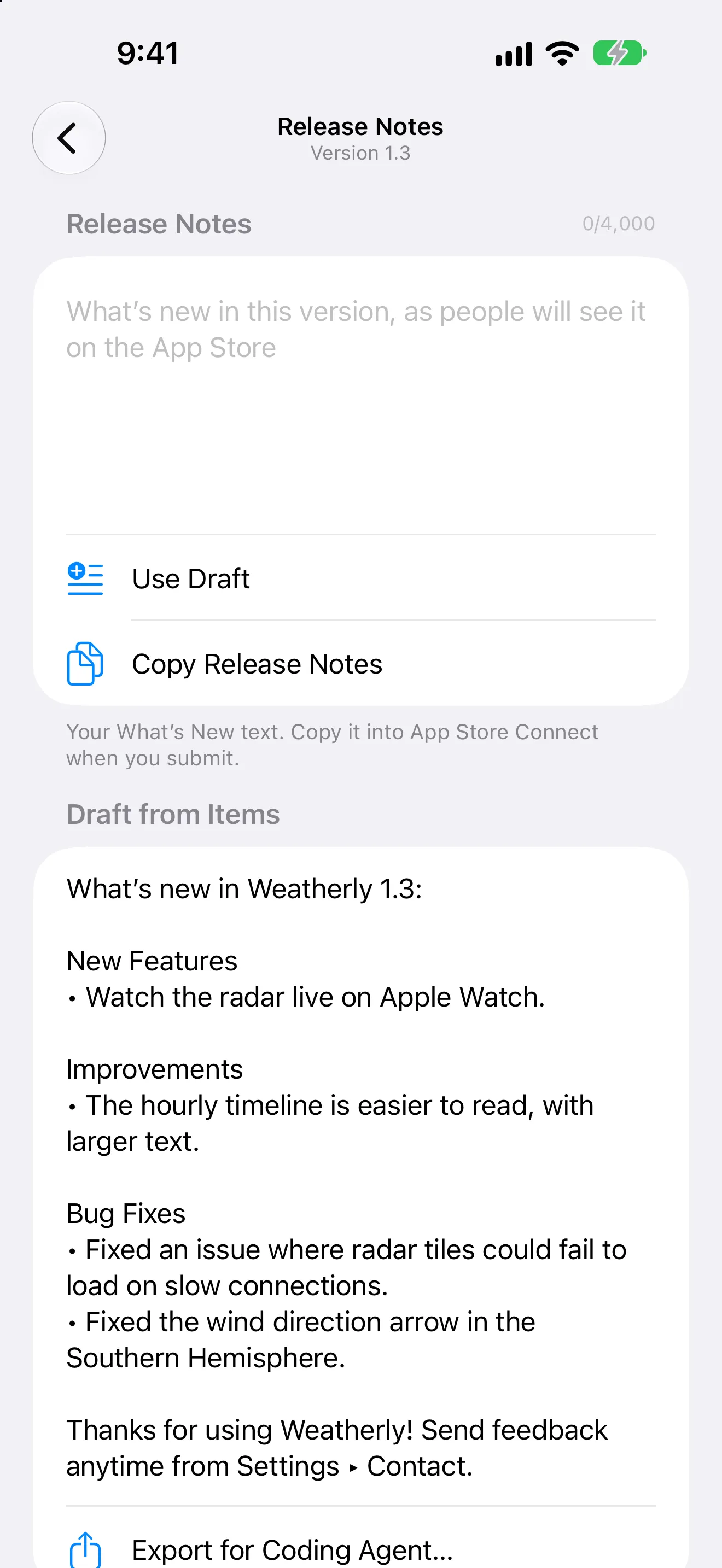
Each fix gets a one-line summary, written by you or your agent. When it’s time to submit to the App Store and write your release notes, DevBench gathers all of your summaries and automatically creates your release notes.
DevBench takes care of the little things, such as automatically tracking TestFlight expiration, submission checklists, App Store and TestFlight text, App Review notes, and more.
Every TestFlight build counts down its 90 days.
Your own checklist, before every submission.
App Review’s message stays with the build while you fix it.
Live character limits, the same as App Store Connect’s.
Release day moves what isn’t finished to the next version.
Each app gets its own Brand Assets library for icons, screenshots, logos and press kits. A screenshot’s languages stay together in one stack, and anything in there drags right back out to the Finder, Xcode or Mail.
The details you’d only notice if they were missing.
One command or one click adds DevBench to your agent, in every project.
Link a project folder, and your agent works on the right app without being told.
Bugs your agent spots while it works land in your backlog.
Each resolved bug records what went wrong and what changed.
Every change says which agent made it.
What’s Next, Prepare a Release and Log This Session, ready in your agent.
Fix These Issues, Investigate Only, Polish Release Notes, or your own.
Teaches your agent how to file, fix and report.
Your agent can add a crash log or screenshot from the project to any item.
Text, links, screenshots and crash logs from any app.
In Control Center, on the Lock Screen and on the Action button.
Share a bug into the version you’re fixing it in.
Add, update and find items by voice or from your own shortcuts.
Drop screenshots and files onto any item.
Copy a screenshot, then press ⇧⌘V on the item.
In Progress, Backlog, Bugs, High Priority, Completed and more.
Every item gets one, like WTH-12. Search it and it’s the top hit.
Filter by kind, status, priority, app or version as you type.
Find any item or app without opening DevBench.
Check off steps and drag to reorder.
Suggested from a pattern you choose and copied in one click.
Screenshots and logs open in place. Drop or paste to add more.
Swipe to move an item to its next status.
Select several items and change them all at once.
See an app’s items in columns by status.
Items, builds and release notes for each version.
Recording a build updates the version’s draft instead of piling up copies.
Sending a new build can mark the ones testers had before as expired.
Shipped versions stay exactly as they shipped.
Rules like Mail’s. Items move to Released when their version ships.
Name, subtitle, keywords and description, with live character limits.
Reads your version and build number, and opens the project in Xcode.
Use Current Time fills in a build number from the date and time.
Read from your project’s Icon Composer file or asset catalog.
Optional, through your own private iCloud account.
Edits from two devices merge field by field. You choose when they clash.
Every change has a named undo, even bulk edits.
Plus a backup file whenever you want one.
Deleted items stay for 30 days.
An app’s release pipeline on your Home Screen or desktop.
For the everyday commands on Mac and iPad.
Open any item in its own window.
Plus larger text, Increase Contrast and Reduce Motion.
Pick the color for each status.
Choose the icon that suits your Home Screen.
DevBench is a universal purchase, so buy it once and use it everywhere.
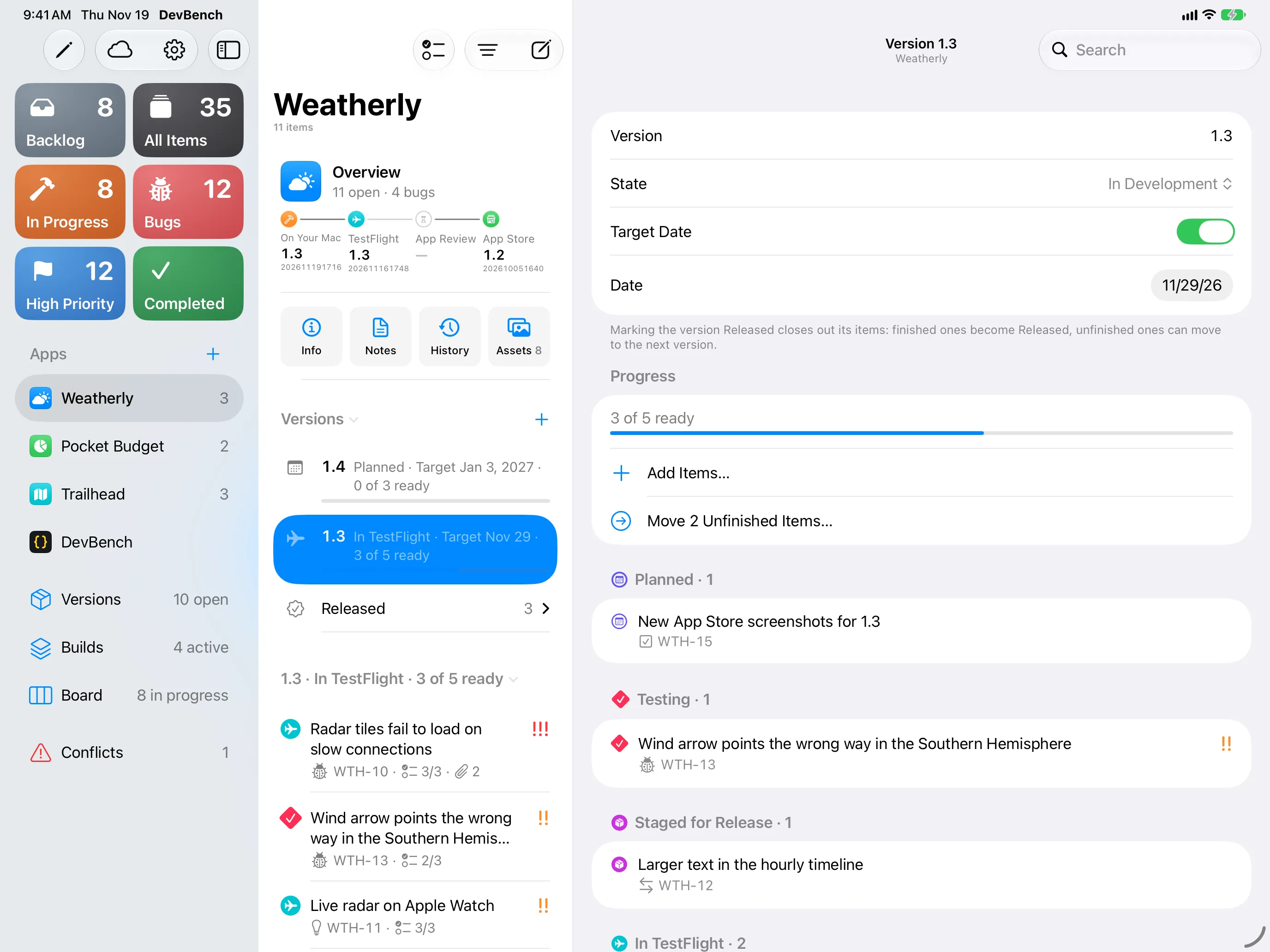
iPad
The same lists and bugs, with drag and drop for screenshots.
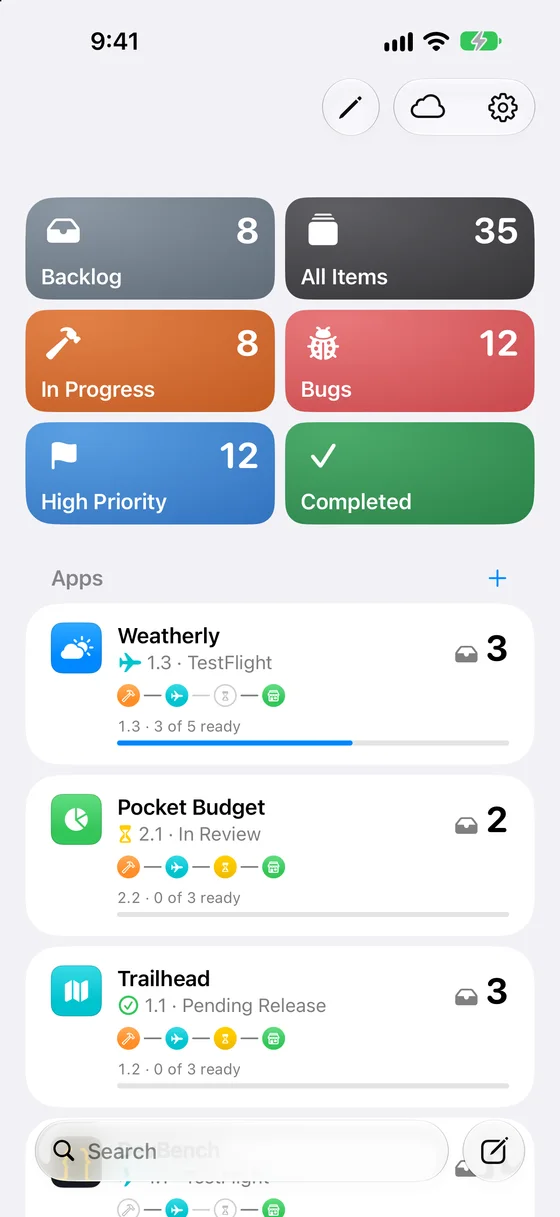
iPhone
Capture a bug when you notice it and check where each app’s release is.
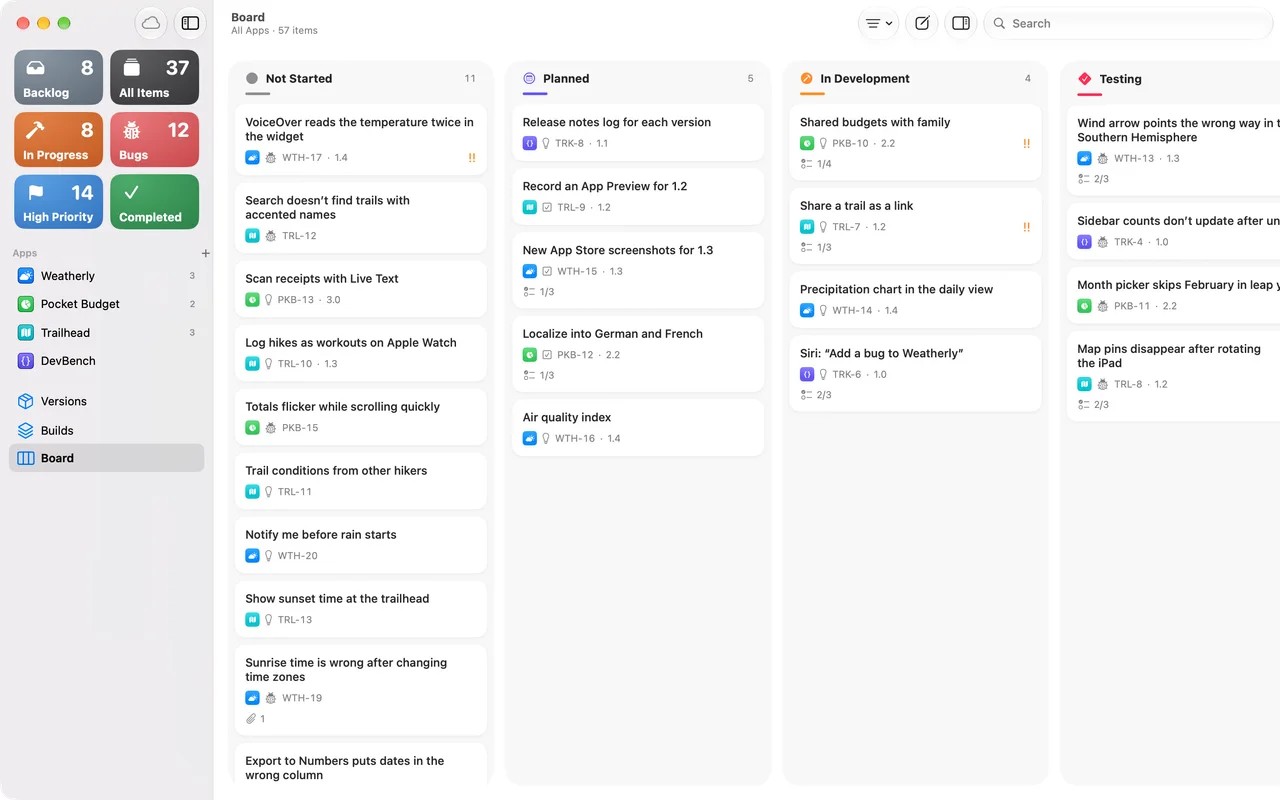
Mac
Your coding agents connect here, and the Board shows every item in every app by status.
There’s no account, no server and no tracking. Your library lives on your devices and, if you want, in your own iCloud. DevBench never reads your code, and coding agents can only reach it from your own Mac.
Read the privacy policyNo subscription, works on all of your devices.
DevBench keeps track of the apps you make: their bugs, ideas and tasks, which version each fix is in, and where every release is, from your Mac to TestFlight, App Review and the App Store. It’s made for people who build with AI coding agents, and those agents can read and update it on their own.
One person making their own apps, often with help from AI, whether you write the code yourself or let an agent write most of it. There are no team accounts. Your library syncs only between your own devices.
No. If you build apps by describing them to an AI agent, DevBench is for you. Setting up your agent takes one copied command or one click, and after that you just talk to it.
MCP, the Model Context Protocol, is an open standard that lets AI agents use other apps. DevBench has it built in, so Claude Code, Codex, Cursor and any other agent that supports MCP can read and update your items.
Claude Code, Codex, Cursor, VS Code and Claude Desktop, each added from Settings ▸ Coding Agents in the Mac app with one copied command or one click. Any other tool that supports MCP can connect too.
Yes, that’s the point: it updates the items it works on as it goes, so you don’t have to. You still have the last word. Every change is signed with the agent’s name, anything it deletes goes to Recently Deleted, shipped versions stay locked, and in Settings ▸ Coding Agents you can stop agents from recording builds or release steps, or turn one off.
No. DevBench works on its own as a bug tracker and release checklist. If you use an agent that doesn’t support MCP, you can export any bug as Markdown with its screenshots and logs.
Agents connect through the Mac app, where you write code. Anything they change syncs to your iPhone and iPad through iCloud. On iPhone and iPad you can also export bugs as files for any agent.
No. DevBench has no servers and doesn’t read your source code. From a project folder you choose, it reads only the app’s name, icon, version, build number and branch. Your library stays on your devices and, if you turn on sync, in your private iCloud account. A coding agent you connect sees the items it reads, under that agent’s own terms.
No. DevBench doesn’t sign in to App Store Connect or TestFlight. You record each step as you take it, in one tap, or a connected coding agent records it for you. DevBench keeps the dates, the checklist and App Review’s notes together for every build.
Yes. Every app has a Brand Assets library for icons, screenshots, logos, press kits and any other file. Stacks keep each screenshot’s languages together, and you can drag files in and out several at a time.
DevBench is $4.99 (US) once, as a universal purchase for iPhone, iPad and Mac. There’s no subscription and no account.
English for now. Localization is coming soon.
Coming soon
DevBench speaks English for now. Other languages are on the way.
The DevBench beta is open on TestFlight. Join, use it on the apps you’re building, and send me what you find.
Join the TestFlight betaEverything you need to set up DevBench, capture bugs, ship releases and work with your coding agent.
Found a bug in the bug tracker? I see the irony too. Tell me what happened, plus your device, OS and DevBench version, or send a question or an idea. I reply to every message.