The 90-day countdown.
TestFlight builds stop working 90 days after they’re sent. Each build in DevBench shows how many days it has left.
 An app by Andrew MastracchioVisit the main site
DevBench follows each build of your app from your Mac through TestFlight, App Review and the App Store. Every bug and change is attached to the build it’s in, each TestFlight build counts down its 90 days, and your release notes come from the fixes in the version.
Choose Record Build… (⇧⌘B on Mac) and check the items it contains. Recording again updates the version’s draft build.
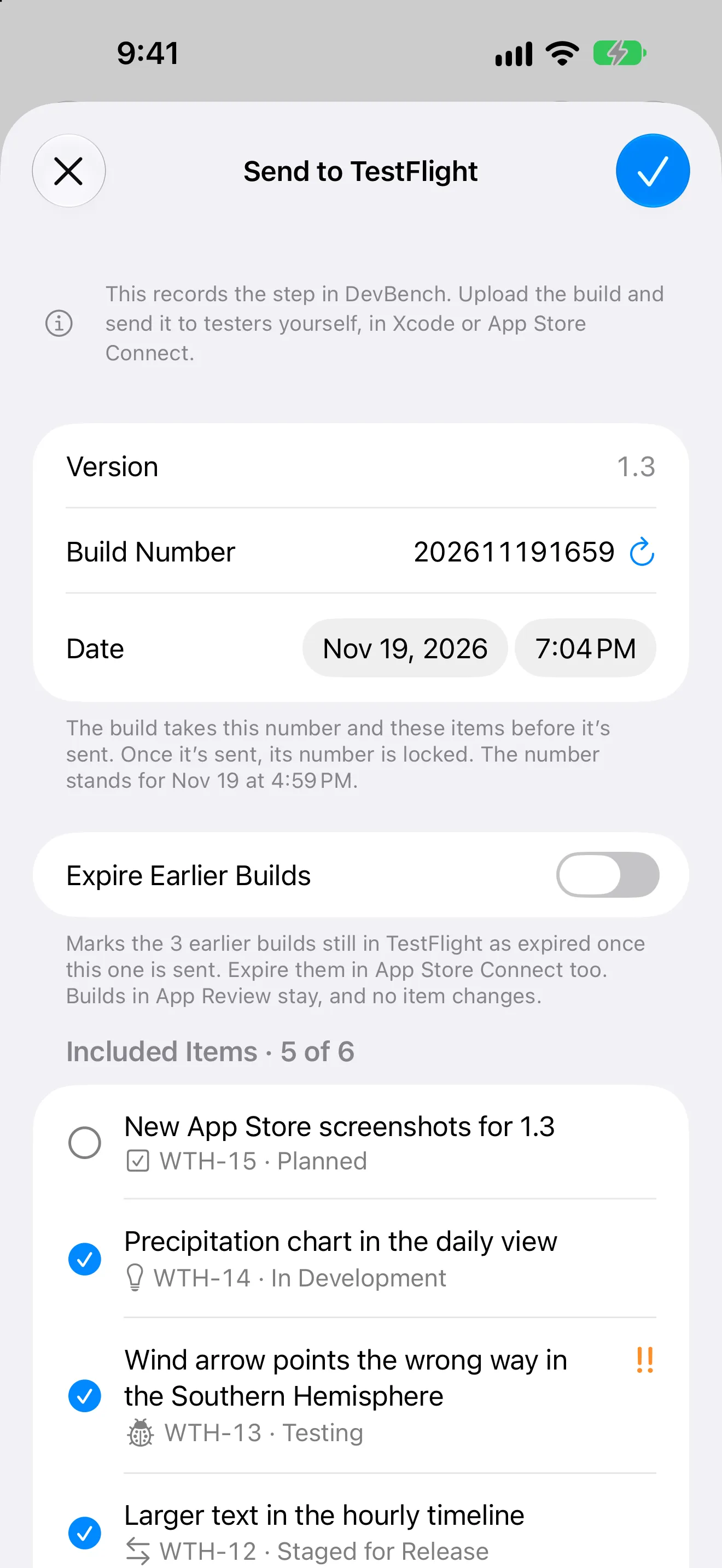
Upload the build as usual, then choose Send to TestFlight… on the app’s Overview. Write What to Test, and turn on Expire Earlier Builds if this build replaces the one testers have now.
Submit in App Store Connect, then choose Submit for Review… and check off each item under Before You Submit. Submit stays off until everything is checked.
Choose Release…, set the release date and check the release notes. Unfinished items can move to a later version, a new version or the backlog.
TestFlight builds stop working 90 days after they’re sent. Each build in DevBench shows how many days it has left.
Items move to In TestFlight, In Review and Released as their build moves. A build’s list of items never changes when items move to a later version.
Mark the build rejected and paste App Review’s message into Reason. It stays with the build while you fix the issue, and the items go back to In TestFlight, or to Staged for Release if the build isn’t in TestFlight.
Write a one-line release note on each item as you finish it. DevBench puts them together for the version, with a counter for the App Store’s 4,000-character limit.
TestFlight builds stop working 90 days after they’re sent. DevBench shows how many days each one has left.
No. DevBench doesn’t sign in to App Store Connect or TestFlight, and it never uploads anything. You take each step as usual and record it in DevBench in one tap, or a connected coding agent records it for you. DevBench keeps the dates, the checklist and App Review’s notes together for every build.
It puts them together from the one-line release note on each item in the version. A connected coding agent can polish them into What’s New and save them too.

DevBench is for iPhone, iPad and Mac. A connected coding agent can record builds and release steps for you.
Join the TestFlight beta