
Versions and builds
Plan items into a version, record builds as you make them, and move each build from your Mac to TestFlight, App Review and the App Store. Items follow their build.
How it fits together
- Version
- What you plan to ship, such as 1.3. Items are planned for a version.
- Build
- One build of a version, with a build number and the list of items it contains.
- Release pipeline
- The four places a build can be: On Your Mac, TestFlight, App Review and App Store.
- DevBench doesn’t sign in to App Store Connect or upload anything. It keeps the record: you record each step as you take it, or a connected coding agent records it for you.
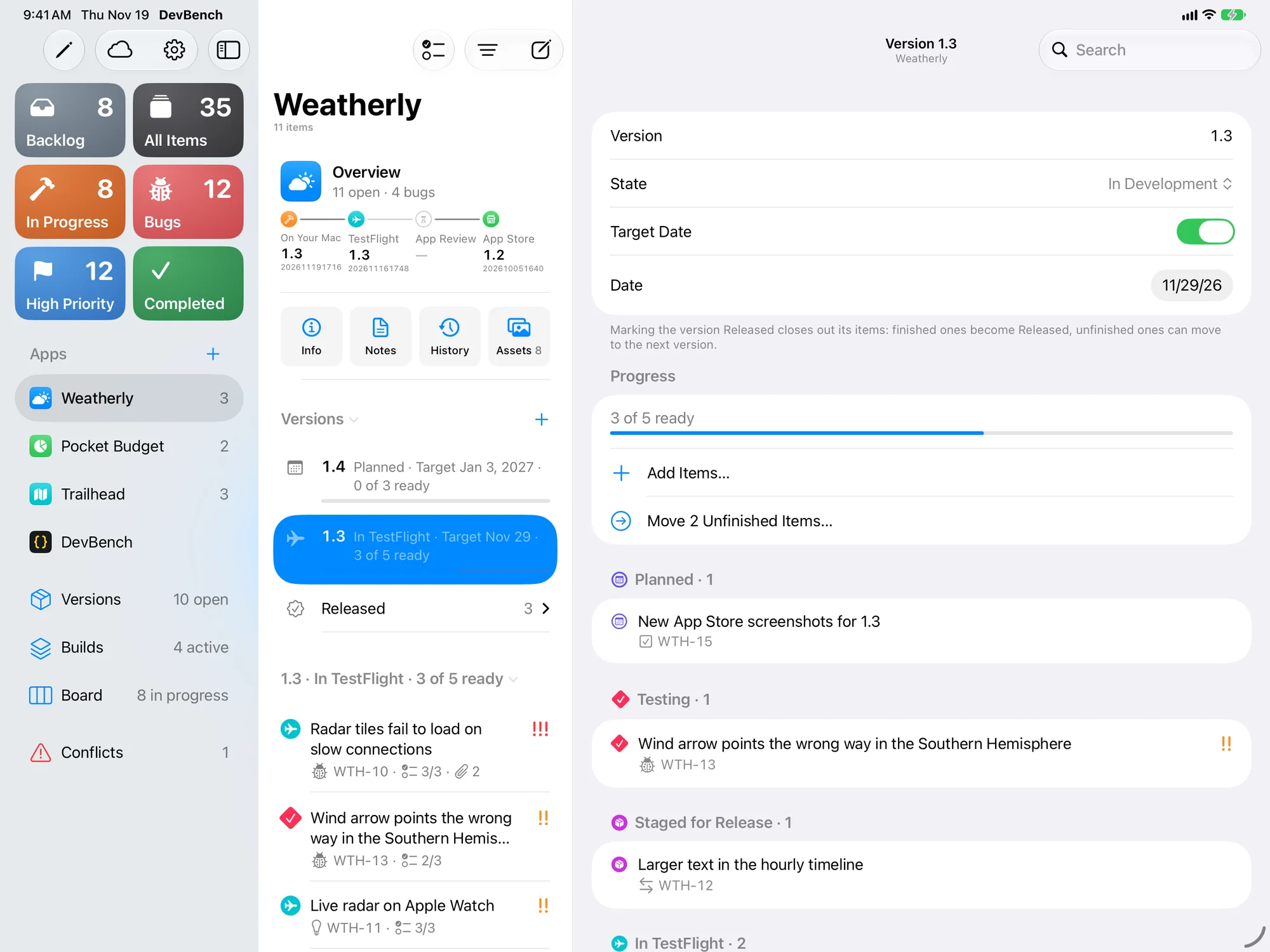
Plan a version
- Open an app and choose New Version… (the + next to Versions).
- Enter the version number and choose Create.
- To plan items, set an item’s Version, drag items onto the version, or open the version and choose Add Items… to pick from the backlog.
- A version’s page shows its Progress: how many of its items are ready, which means Staged for Release or later.
- Turn on Target Date to give the version a date to aim for.
- A version is Planned, In Development, Released or Cancelled. Change that under State.
- Move Unfinished Items… sends what isn’t ready to another version or the backlog.
Record a build
- Choose Record Build… (⇧⌘B on Mac).
- Check the Version and the Build Number. Use Current Time or Use Next Number fills in a number in the app’s build number style.
- Under Included Items, check the items the build contains. New Item… writes an item straight into the build.
- Choose Record.
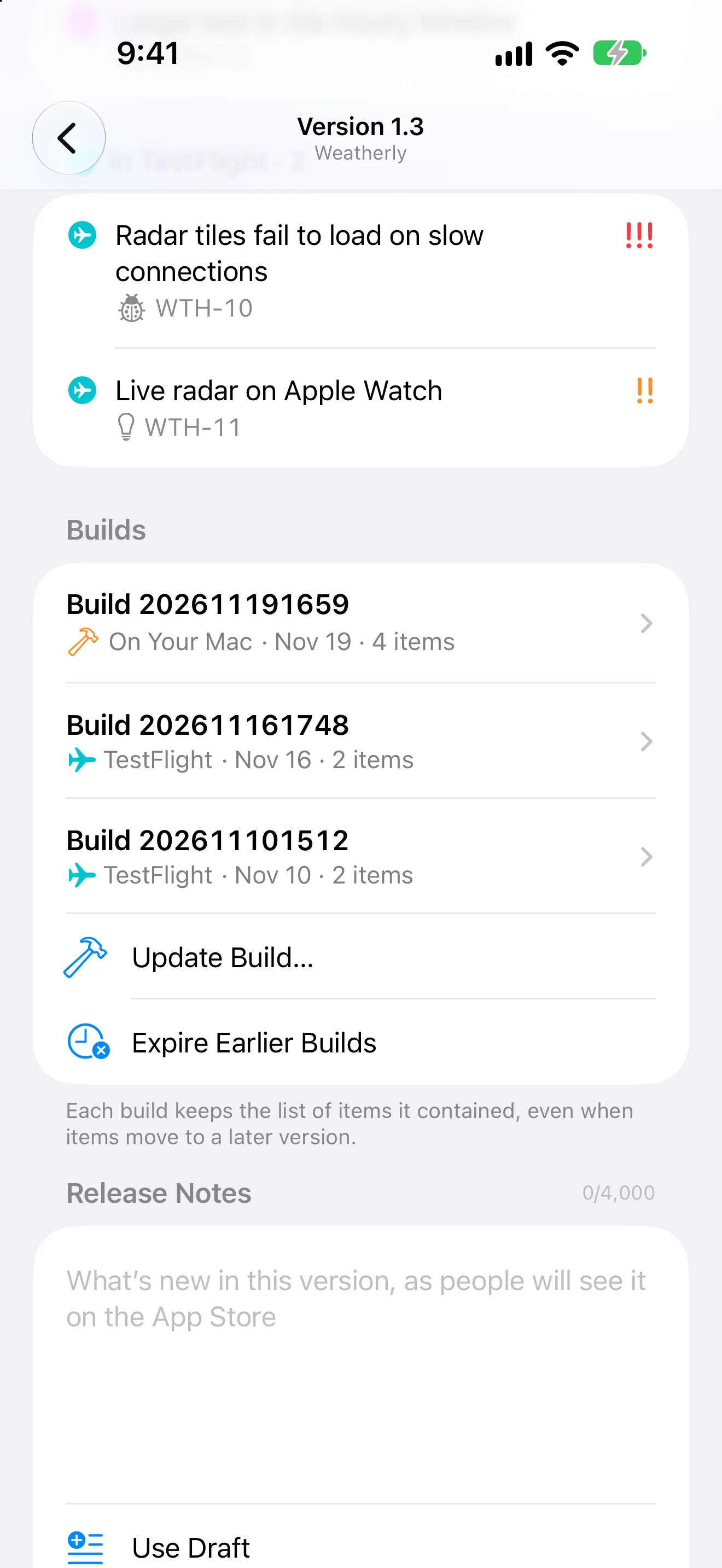
- DevBench keeps one draft build per version. Until a build is sent out, recording again updates the draft instead of adding another, and the button reads Update Build…
- Once a build is sent to TestFlight or App Review, its number is locked.
- With a project folder linked, DevBench offers the build number the project is at.
- Build numbers must be unique within a version.
- A build’s list of items never changes when items move to a later version.
Move a build forward
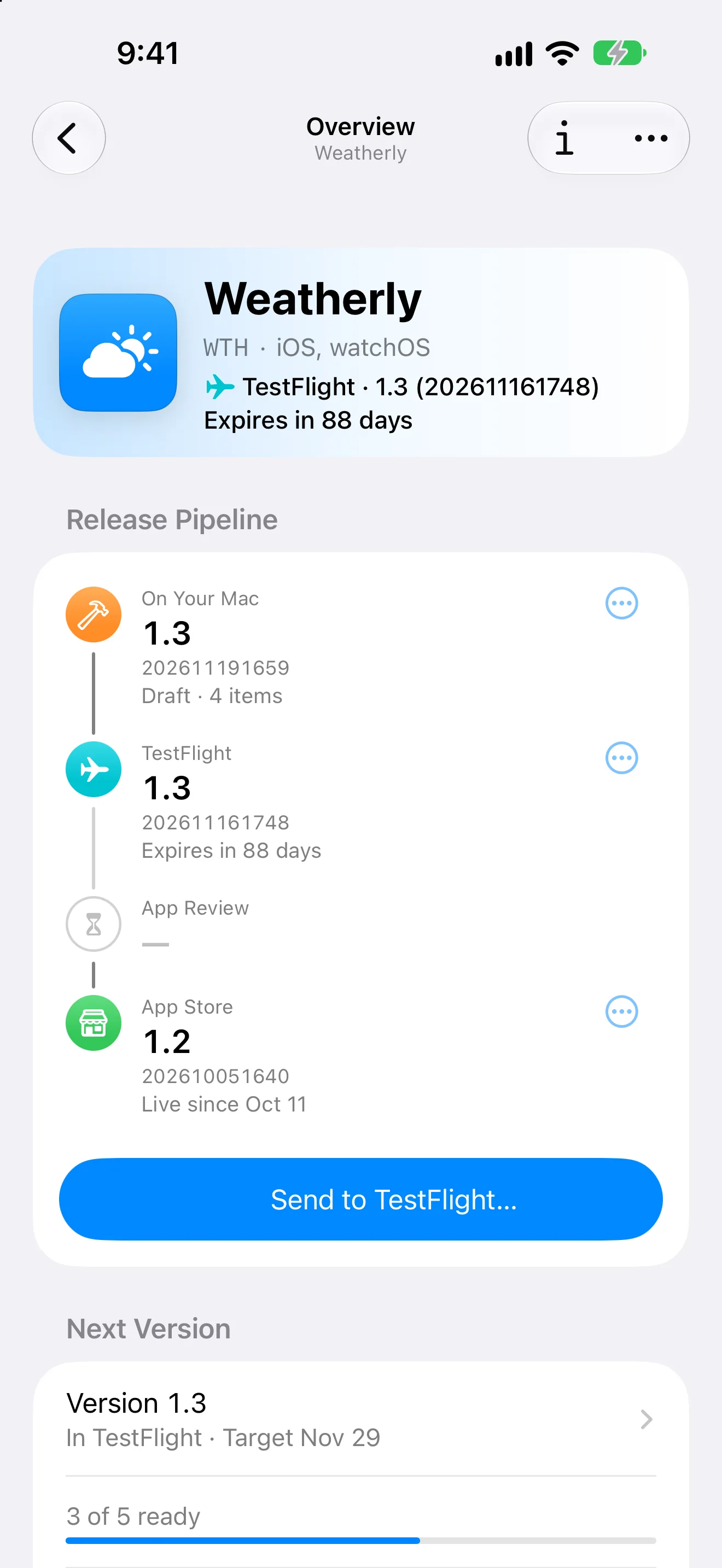
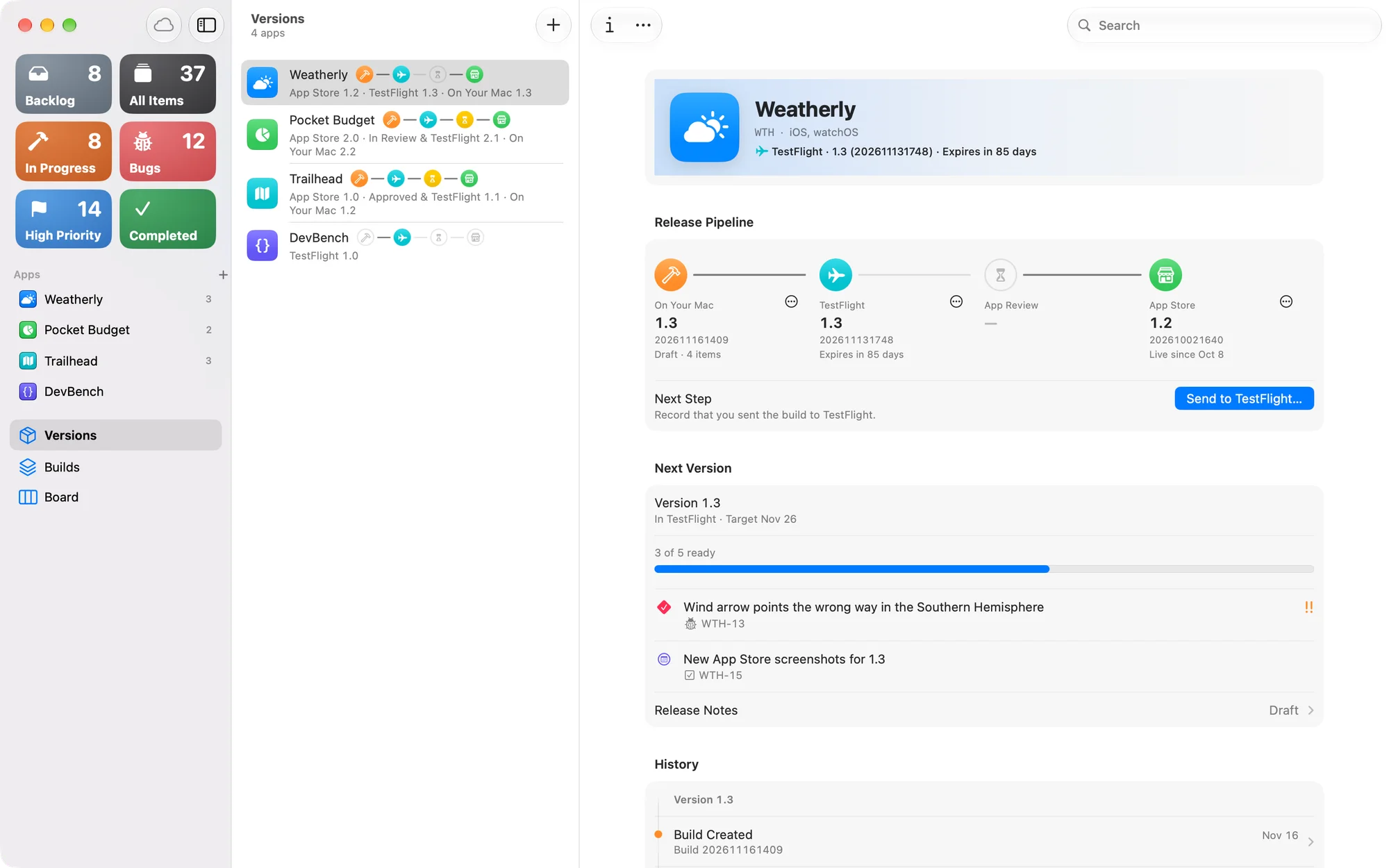
The app’s Overview shows the release pipeline: On Your Mac, TestFlight, App Review and App Store. Under Next Step, one button offers the next move, such as Send to TestFlight… Every move can be undone.
- A move records what you did. DevBench doesn’t upload, submit or release anything, so take the step in Xcode or App Store Connect too. Each sheet says so at the top.
- The More button on each stage of the pipeline has the other moves for the build that’s there.
A build’s page
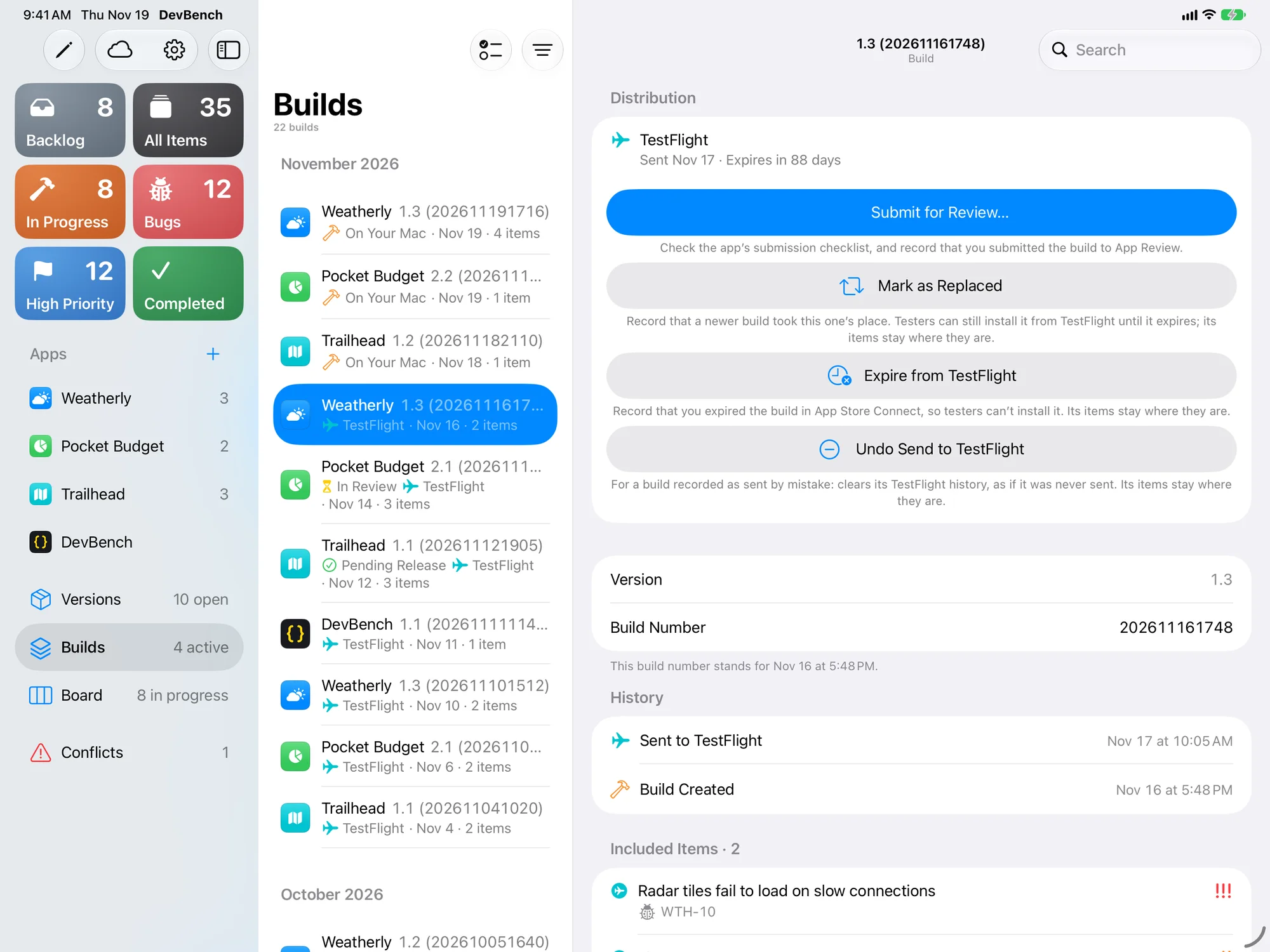
Open a build from its version, the Builds list or Release History.
- Distribution
- Where the build is now, when it was sent, and the moves it can make next.
- Build Number and Version
- A timestamp build number also shows the date and time it stands for.
- Contents
- The items in the build, each with its current status. Choose Edit Included Items… to correct the list.
- What to Test, Rejection Reason, Notes
- What you told testers, what App Review told you, and anything else.
- History
- Each event: created, sent, submitted, approved, rejected, released.
- Recorded a step on the wrong day? Touch and hold or Control-click the event and choose Change Date…, or Delete Event. A build’s stage follows its most recent event.
The Versions and Builds lists
- Versions, in the sidebar, shows every app with its pipeline and the versions still to come.
- Builds lists every build in every app. Use View Options to filter by App or Status, sort by date or version, and group by month or app.
- In Builds, choose Select to mark several builds expired from TestFlight, or delete them, together.
- An app’s Release History (History on its page) is a timeline of every build event. Filter it by event or version, and sort it either way.
Released versions are locked
Released versions are kept as they shipped, along with their builds and items. Choose Edit on the version’s page to change them.
Delete a version or build
- Delete Version… moves the version, its builds and its release history to Recently Deleted. Its planned items move to the backlog.
- Delete Build… moves the build and its release history to Recently Deleted.
Import past releases
If you have a DevBench history file for an app, you can bring in its past versions, builds, release dates and items.
- On Mac, choose File ▸ Import… or double-click the file. On iPhone and iPad, open it from the Files app.
- Pick the app to import into, and review what will be added. Items that look like ones you already have are flagged, so you can skip them.
- Choose Import. Dates come from the file, and automations don’t run.
- Importing the same file again updates what it added instead of making copies. Anything you changed since stays as you left it.
- Undo takes the whole import back. Later, open the file again and choose Remove What This Archive Added…