

Sync & backup
DevBench has no servers and no account. Your library stays on your devices and, if you turn on sync, in your private iCloud account.
iCloud sync
Turn Sync with iCloud on or off in Settings ▸ Sync & Backup. It keeps your apps, items, releases and files up to date on every device signed in to your Apple Account. Offline changes wait on the device and sync when you’re back online.
- With sync off, changes are saved only on that device.
- Project folder links and coding agent settings stay on the device where you set them up.
Check on sync
The cloud button in the toolbar shows how sync is doing. Choose it to see when DevBench last synced, what’s waiting to upload and any recent problems, or to Sync Now (⌥⌘R on Mac).
- Synced
- Everything is up to date.
- Syncing
- Changes are going up or coming down. Large attachments show their progress.
- Offline
- Changes are saved on this device and sync when you’re back online.
- Not Signed In
- Sign in to iCloud in Settings (System Settings on Mac) to sync.
- Needs Attention
- Something needs you, such as full iCloud storage. The sheet says what.
- Off
- Sync with iCloud is turned off.
Resolve a conflict
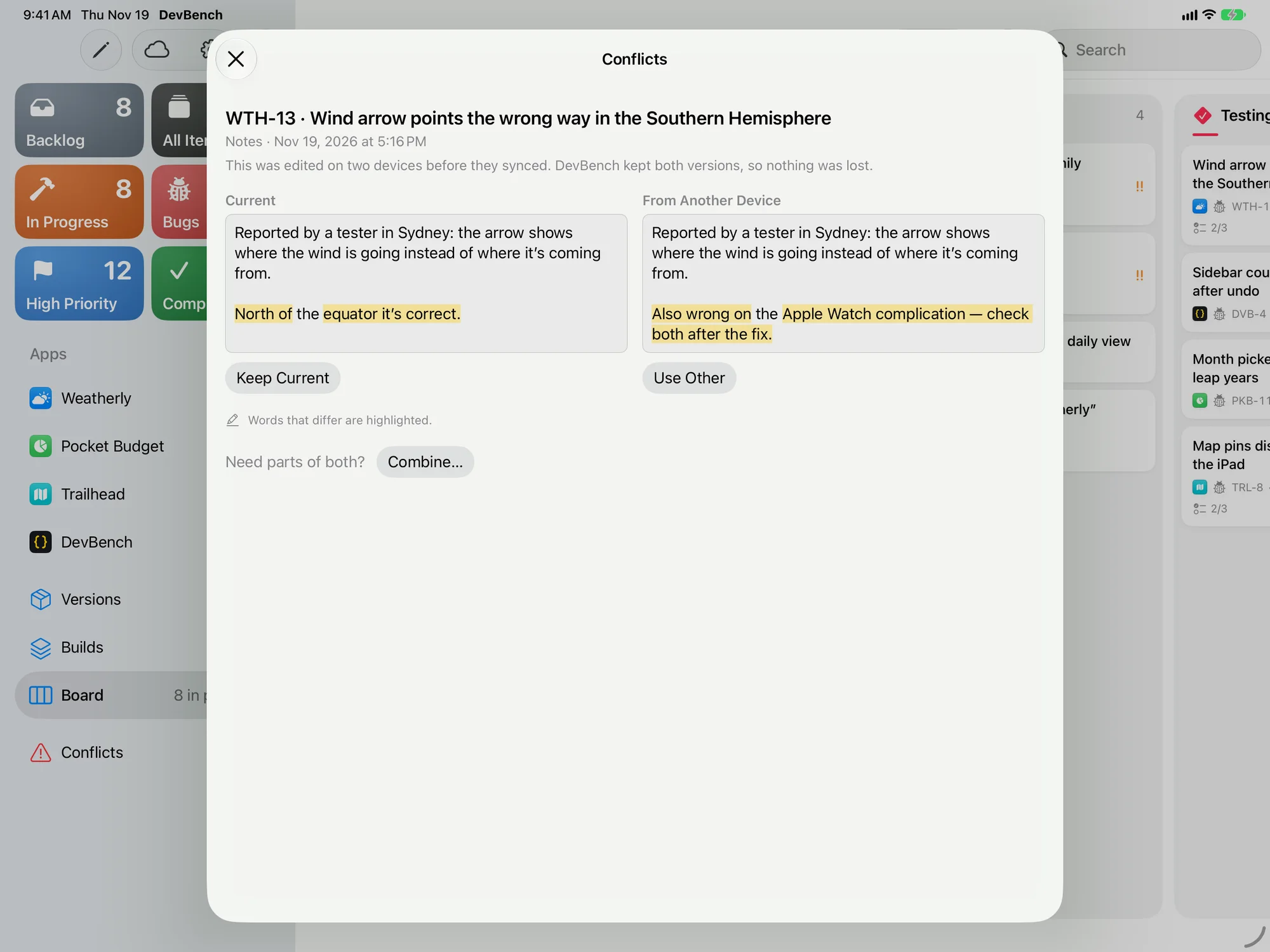
If the same text is edited on two devices before they sync, DevBench keeps both versions, so nothing is lost. A Conflicts row appears in the sidebar, and the item says it was edited on another device.
- Choose Conflicts, or Compare… on the item.
- Read the two versions side by side: Current and From Another Device. Words that differ are highlighted.
- Choose Keep Current or Use Other. Need parts of both? Choose Combine… and edit the text to keep what you need from each.
Back up
Backups are in Settings ▸ Sync & Backup. A backup holds your apps, items, releases, attachments and brand assets.
- Back Up Automatically saves a backup once a day. Under Keep, choose how many to hold on to: 5, 10, 20 or 50.
- Saved backups are kept on this device, and they’re removed if you delete DevBench. To keep one somewhere else, use Save a Backup File.
- Save a Backup File saves a backup wherever you choose, such as iCloud Drive.
- Add to Saved Backups keeps a backup on this device right away, in the list of Saved Backups.
- Choose More next to a saved backup for Restore…, Share… and Delete…, and on Mac, Save As… and Show in Finder.
- On Mac, File ▸ Back Up… and File ▸ Restore from Backup… do the same from the menu bar.
Restore a backup
- In Settings ▸ Sync & Backup, choose Restore… from the More menu next to a saved backup, or Restore from File for one you saved elsewhere.
- Read what will be replaced, then choose Restore.
- Restoring replaces your library on this device and, through iCloud, on your other devices.
- DevBench saves a backup of your current data first. It’s listed as Before Restore, so you can go back.
Start sync over
Two tools in Settings ▸ Advanced, under iCloud, help when devices disagree. Neither deletes anything.
- Upload All Data to iCloud
- Copies everything on this device to iCloud again, such as after restoring a backup. Other devices keep their data and receive anything they’re missing.
- Download Everything Again
- Downloads everything from iCloud again, such as when a device is missing something, then uploads anything on this device that’s different. Data on this device and changes waiting to upload are kept.
Recently Deleted
Deleted apps, items, versions, builds, attachments and brand assets go to Recently Deleted first, and stay for 30 days unless you change that.
Erase everything
Settings ▸ Advanced ▸ Erase Library removes every app, item, build and file from this device and from iCloud, on every device, and starts DevBench over. You type “erase” to confirm, and it can’t be undone. Backups on the device and the diagnostics log stay, so restoring a backup afterward brings your library back.