

Export for a coding agent
No MCP? Export the items as files any agent can read, then bring its answers back.
Export the items
- Select one or more items and choose Export for Coding Agent… (⇧⌘E on Mac).
- Choose a prompt, and what to include.
- Choose Save to Project to put the export in the app’s project folder, or Save to Folder… for anywhere else. On iPhone and iPad, Share… sends it to another device, such as your Mac by AirDrop.
- Start your agent in the folder and give it TASKS.md. It has your prompt, the items, and how to report back.
- The export is a folder with TASKS.md, the attachments, and a Resolutions.devbench file for the agent to fill in.
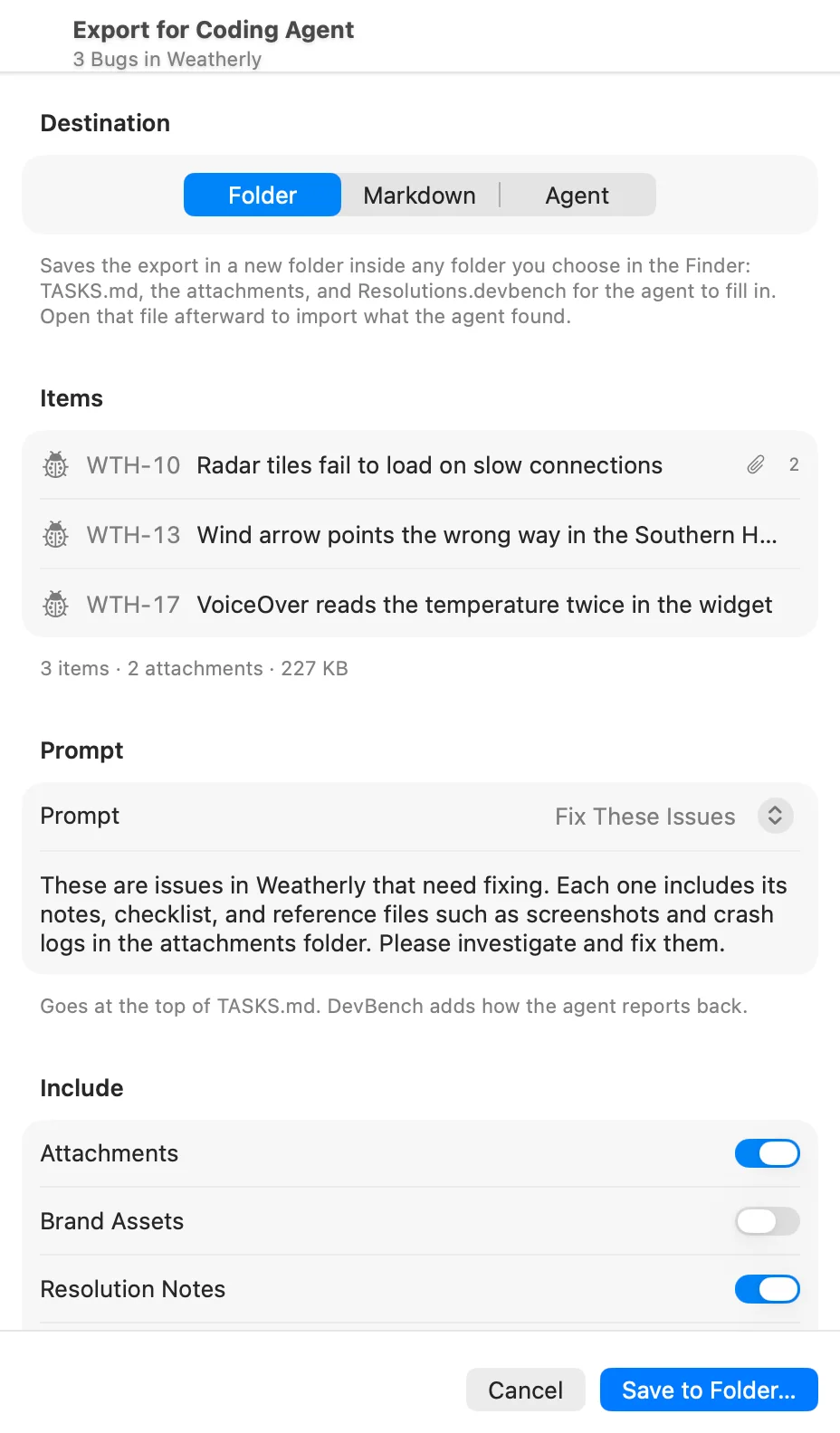
Where the export goes
- Project
- Saves to DevBench Exports in the app’s linked project folder, where an agent working in the project reads it. DevBench watches for the agent’s answers.
- Folder
- Saves a new folder inside any folder you choose.
- Share
- On iPhone and iPad, sends the files to another app or device.
- Markdown
- Copy Markdown copies the items as text, for pasting into a chat with an agent.
- Agent
- On Mac, Copy Prompt copies a prompt for an agent connected over MCP. There’s nothing to hand over: the agent fetches the items and attachments itself.
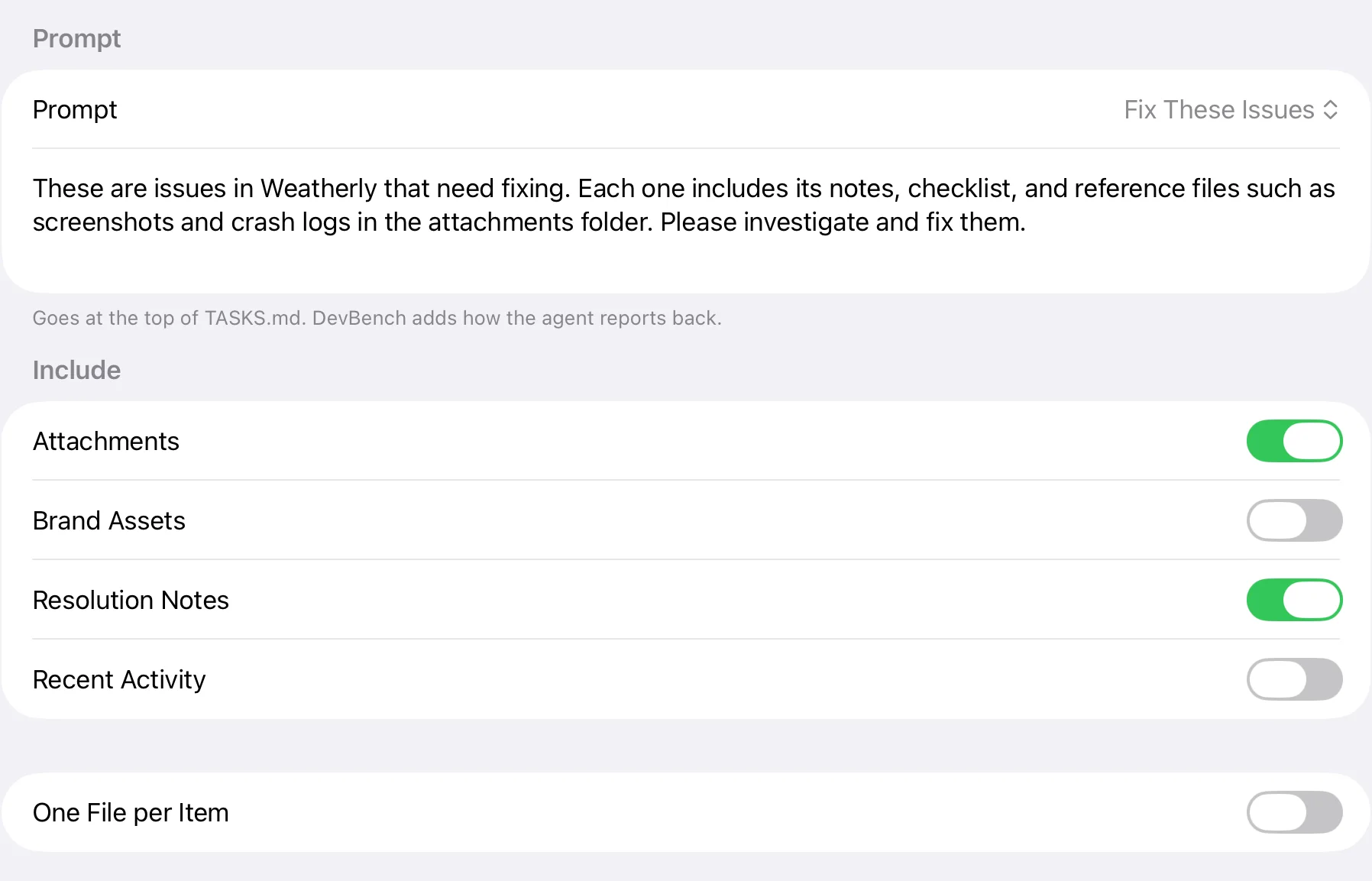
What to include
- Attachments
- Screenshots, recordings and logs, copied into the export.
- Brand Assets
- The app’s icons, logos, screenshots and other brand files, in a folder laid out as in DevBench.
- Resolution Notes
- What was already found and fixed on each item.
- Recent Activity
- Each item’s latest history.
- One File per Item
- TASKS.md lists the items and links to a file for each.
- Attachments, Brand Assets and One File per Item apply when the export is saved as files.
- Attachments that haven’t downloaded to this device yet are left out, and the sheet says how many.
Import the agent’s fixes
- When the agent is done, open the Resolutions.devbench file it filled in: double-click it or drop it on DevBench on Mac, or open it from the Files app. File ▸ Import… works too, and lists your Recent Exports.
- Review what it found before anything changes.
- Choose Import. Each cause and fix is added to its item’s resolution notes, credited to the agent. Turn on Apply Suggested Statuses to move items to the status the agent suggested, such as Testing.
- DevBench watches exports saved to a project and tells you when your agent’s resolutions are ready. Choose Review…
- If the agent is connected over MCP, it reports back with resolve_item instead, and there’s nothing to import.
What the review shows
- Ready to Import
- Resolutions that will be added.
- Needs Fixing in the File
- Entries DevBench couldn’t read. Fix the file, or ask the agent to, then choose Check Again.
- Left Blank
- Items the agent didn’t fill in.
- Already Imported
- Resolutions you brought in before. They aren’t added twice.
- Not Imported
- Entries for items that are in Recently Deleted or no longer exist.
Clean up exports
- After importing, DevBench offers to delete the export folder. The items, their resolutions and their attachments stay in DevBench.
- The export sheet lists Earlier Exports that are still in the folder, with how much space they take, and can remove them together.
- Exports with resolutions you haven’t imported yet are kept.
- On Mac, App Info ▸ Project Folder ▸ Exports for Coding Agents lists the exports saved in a project.