

Capture
Every new item goes to its app’s backlog as Not Started, unless you choose a version. A title is all it needs. Fill in the details later.
Inside DevBench
Press ⌘N, or tap New Item, from anywhere in the app. On Mac, File ▸ New also starts a bug, idea, change or task directly.
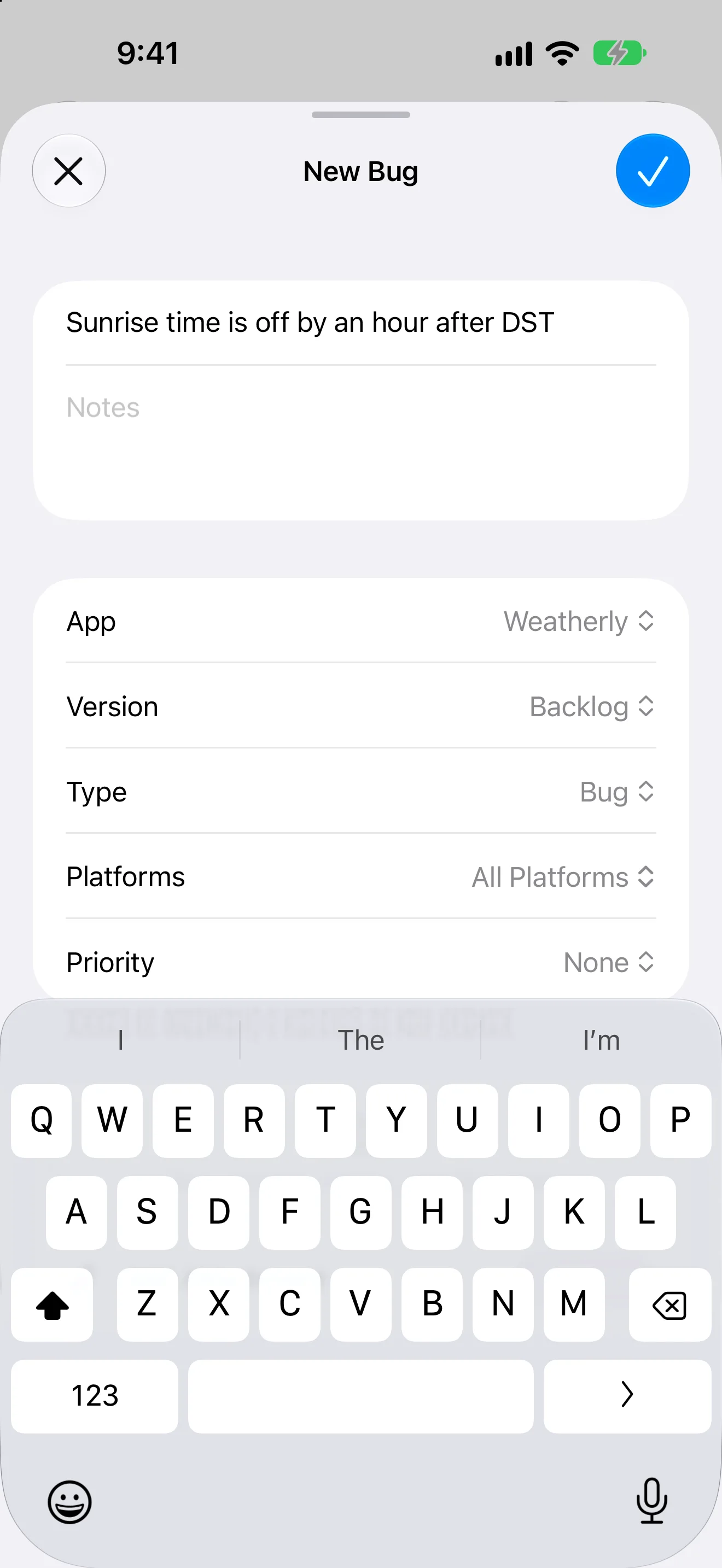
- Title
- The only thing an item needs.
- Notes
- Steps to reproduce, what you expected, anything else.
- App
- The app the item belongs to. DevBench starts with the app you’re looking at.
- Version
- Backlog, or a version to plan the item for right away.
- Type and Priority
- Bug, Idea, Change or Task, and how much it matters.
- Attachments
- Screenshots, recordings, crash logs and other files.
- Drop screenshots and files onto an item to attach them, or copy one and press ⇧⌘V.
From a screenshot
- Take a screenshot and tap the thumbnail to open it. Mark it up if you like.
- Tap Share, then DevBench.
- Add a title. Choose the app, and the type, priority or version if you want.
- Tap Save. The screenshot is attached to the new item.
Save to Brand Assets instead
In the share sheet, change Destination from New Item to Brand Assets to file images and other files in an app’s library instead of its backlog. Choose one of the library’s folders under Folder, or leave them at the top of the library. Only files can be added to Brand Assets, so shared text and links are left out.
With Siri
Say “Add a bug to Weatherly in DevBench” or “Quick capture in DevBench”. Siri asks for anything it’s missing.
From Control Center, the Lock Screen or the Action button
The Quick Capture control opens DevBench straight into a new item.
Defaults for new items
In Settings ▸ Automations ▸ New Items, choose the Default Type and Default Priority. They apply wherever you start a new item: New Item, the share sheet and Siri.
Add several items quickly
To file a near copy of something, select an item and choose Duplicate (⌘D). The copy starts in the backlog as Not Started, with the same notes, type and priority.