

Coding agents (MCP)
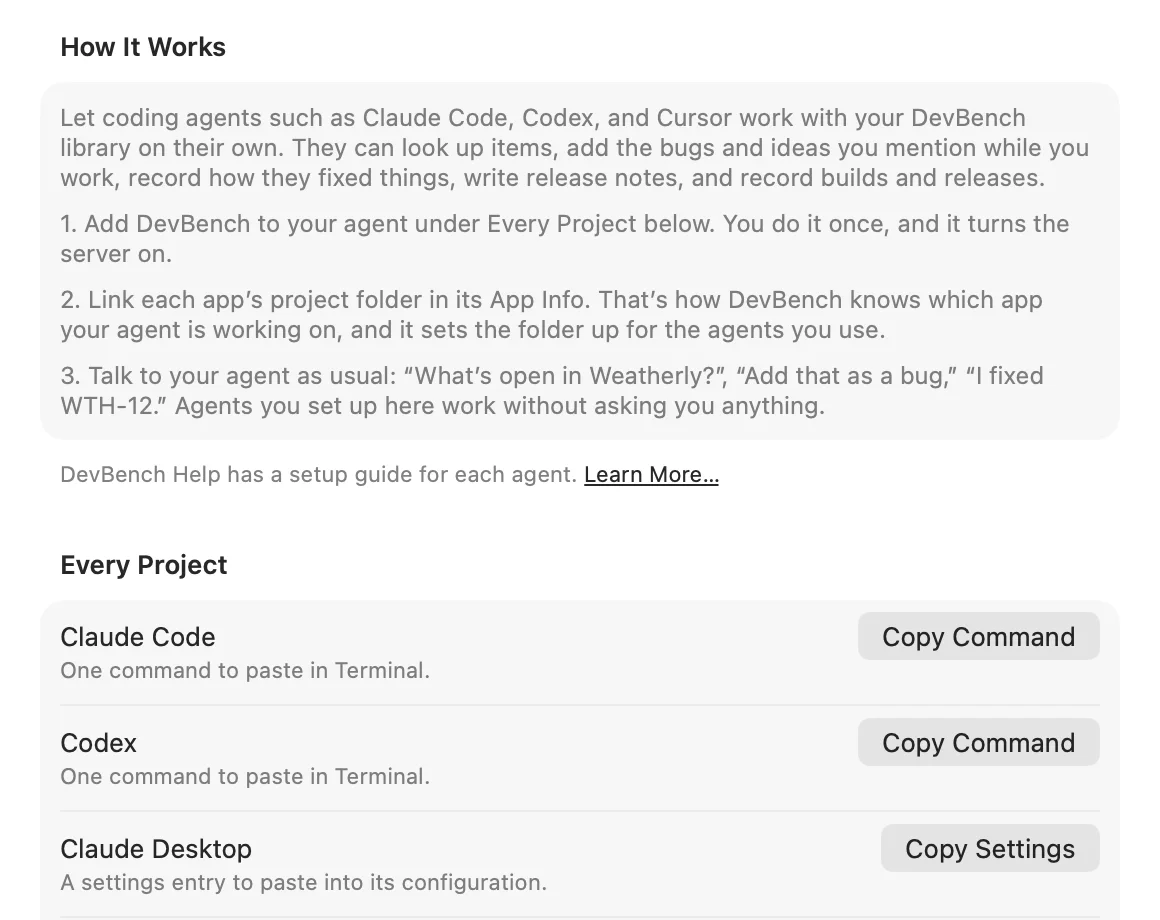
DevBench for Mac has an MCP server built in, so Claude Code, Codex, Cursor and other coding agents can work with your library on their own. They can look up items, add the bugs and ideas you mention while you work, record how they fixed things, write release notes, and record builds and releases. The server runs only on your Mac, and it’s off until you set up an agent.
Set up your agent
Add DevBench to your agent once, and it’s there in all your projects.
- In DevBench for Mac, open Settings ▸ Coding Agents.
- Under Every Project, choose the button next to your agent: Copy Command for Claude Code and Codex, Add to Cursor or Add to VS Code, or Copy Settings for Claude Desktop.
- Finish in your agent. The row says what’s left to do, such as “Copied. Paste it in Terminal and press Return.”, and shows Connected once the agent connects.
- Link each app’s project folder in its App Info. That’s how DevBench knows which app your agent is working on.
- Start a new session with your agent in that folder and ask “What’s open in Weatherly?”
- Setting up an agent turns on DevBench’s server, and the agent can make changes without DevBench asking.
- In a folder that isn’t linked to an app, the agent names the app it means.
- On Mac, the welcome tour offers the same setup under Connect Your Coding Agent.
- An agent whose app isn’t on this Mac shows as Not installed.
Claude Code
Add DevBench to Claude Code with the command or with the plugin.
- Command
- Under Every Project, choose Copy Command next to Claude Code. Paste it in Terminal and press Return.
- Plugin
- Under Agent Plugin, choose Save Plugin… and pick a place for it. Then choose Copy Command next to Install in Claude Code and paste it into Claude Code. The plugin connects DevBench and adds a skill that teaches the agent when to use it.
- Claude Code asks before it uses a server’s tools. In your linked project folders, DevBench approves itself in .claude/settings.local.json, so Claude Code doesn’t stop to ask there.
- Use one or the other. If you install the plugin after adding DevBench with the command, remove the first one with “claude mcp remove devbench” so the server isn’t listed twice.
- Each plugin you save has a newer version than the last, so installing it replaces the one before.
Codex
Under Every Project, choose Copy Command next to Codex. Paste it in Terminal and press Return.
- To add it by hand instead, go to Connect Manually, choose Copy Settings next to Codex Settings, and paste them into ~/.codex/config.toml.
Cursor and VS Code
Under Every Project, choose Add to Cursor or Add to VS Code. The app opens and asks you to confirm the DevBench server. That adds DevBench for every project, without Terminal.
- An app that isn’t on this Mac shows as Not installed.
Claude Desktop
- Under Every Project, choose Copy Settings next to Claude Desktop.
- In Claude Desktop, open Settings ▸ Developer ▸ Edit Config and paste the settings in.
- Restart Claude Desktop.
Linked project folders
DevBench also adds itself to each linked project folder, in the settings files of the agents you use. That’s what lets Claude Code use DevBench without asking, and Cursor’s and Codex’s files also name the app.
- In Settings ▸ Coding Agents, under Linked Projects, choose the App.
- Turn on the agents you use. Each one shows its file, such as .mcp.json for Claude Code, .cursor/mcp.json for Cursor and .codex/config.toml for Codex, and whether it’s Configured or Not set up.
- Choose Connect. DevBench adds itself to those files and keeps your other settings.
- Set Up Project Folders When Linked is on unless you turn it off. While the server is on, linking a project folder to an app sets it up for the agents that are on.
- Connect All sets up every app with a linked project folder at once.
- If DevBench says some files run a helper that’s missing or out of date, choose Update All.
- An app’s App Info has a Coding Agents row that does the same for that app. Its button reads Update when a file needs fixing.
- The files point to DevBench on this Mac, so they’re best left out of version control.
Other agents
Any agent that speaks MCP can connect. Under Connect Manually you’ll find what it needs.
- Helper
- The command agents run to reach DevBench. It opens DevBench when needed and reads the access token itself, so there’s nothing to paste. It keeps working when DevBench updates or moves.
- Address
- For agents that connect over HTTP, the address shown under Server.
- Access Token
- HTTP agents send it as “Authorization: Bearer”. Choose Show or Copy. Keep it out of files you commit.
- Claude Code over HTTP
- A command that connects Claude Code by address and token instead of the helper.
- Copying any of these turns the server on.
When an agent first connects
Agents you set up in DevBench can make changes right away. An agent that connects another way can read, and DevBench asks “Allow … to Make Changes?” when it connects. Choose Allow or Don’t Allow. If you don’t answer, the agent stays pending, and DevBench asks again before its first change.
Things to ask your agent
- “What’s open in Weatherly?”
- “Add that as a bug.”
- “I fixed WTH-12.”
- “What should I work on next?”
- “Draft the release notes for 1.3.”
What agents can do
Agents can always read, add and edit items, versions and builds, write release notes, and move things to Recently Deleted or bring them back. Only you delete anything for good. Recording builds and release moves are up to you.
Keep agents connected
- Turn on Open DevBench at Login so agents that connect over HTTP find the server after a restart. Agents set up with the helper open DevBench themselves.
- Choose Test Connection to send a request the way an agent would. “Working” means the server answered.
- The status under Allow Coding Agents to Connect reads Off, “On, no agents connected” or “On, 2 connected”.
- New Token… under Connect Manually replaces the access token. Agents set up with the helper reconnect on their own. HTTP agents need the new token.
Turn agents off
- Under Agents, choose Turn Off next to an agent to stop it reading or changing anything. Choose Allow to let it back in.
- Control-click an agent and choose Forget Agent to remove it from the list. If it connects again, DevBench asks about it like a new agent.
- Turn off Allow Coding Agents to Connect to stop the server. If an agent’s helper then tries to reach DevBench, DevBench asks whether to turn it back on.
Security
The server listens on this Mac only, and every request needs the access token, which is kept in your keychain. Nothing is sent to a DevBench server, because there isn’t one.