
Prompts
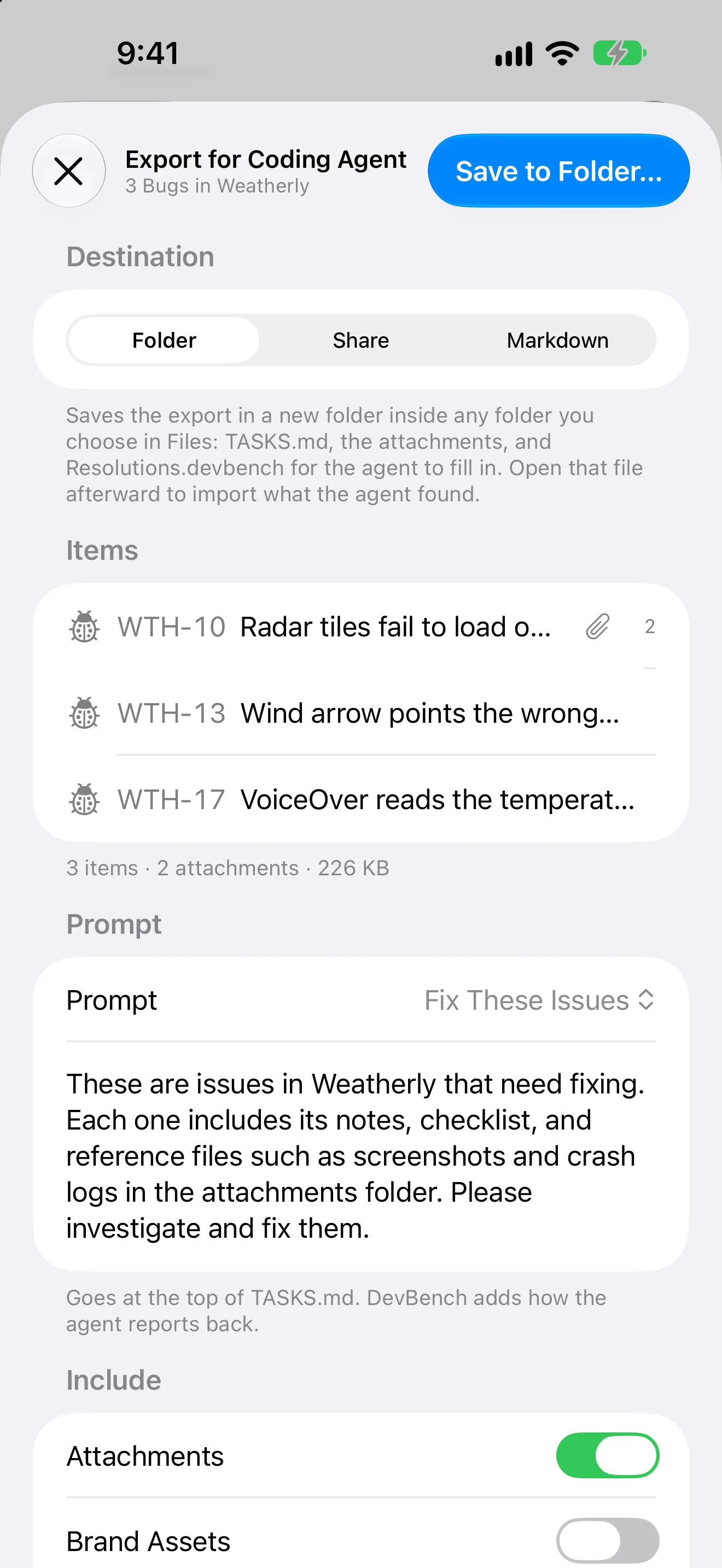
A prompt is the instruction that goes to your coding agent with your items or your release notes. DevBench comes with four, and you can write your own.
The built-in prompts
Open Settings ▸ Prompts. Prompts come in two kinds: for items and for release notes.
- Fix These Issues
- For items. Asks the agent to investigate and fix them, using each item’s notes, checklist and attachments.
- Implement These Features
- For items. Asks the agent to implement them, following the existing code style.
- Investigate Only
- For items. Asks for the likely cause of each, with no code changes yet.
- Polish Release Notes
- For release notes. Asks the agent to rewrite a version’s draft as concise, friendly notes for the App Store’s What’s New, in plain text, keeping every change and inventing nothing.
Write your own
- In Settings ▸ Prompts, choose New Prompt…
- Give it a name and choose whether it’s for items or release notes.
- Write the instruction, using placeholders where you want details filled in.
- Choose Make Default on the prompt you use most of each kind.
- Edit… changes a prompt, and Delete removes it.
- You don’t need to tell the agent how to report back. DevBench always adds that.
Placeholders
- {app}
- The app’s name. Works in both kinds of prompt.
- {count}
- How many items are being handed over. Item prompts only.
- {date}
- Today’s date. Item prompts only.
- {version}
- The version number. Release notes prompts only.
Where prompts are used
- In Export for Coding Agent…, choose the Prompt. It goes at the top of TASKS.md, and DevBench adds how the agent reports back.
- With Copy Markdown, it goes before the items. With Copy Prompt, it goes in the prompt for your connected agent.
- In Claude Code, each prompt is a slash command, such as /mcp__devbench__fix_these_issues.
- A version’s Export for Coding Agent… and Ask Your Agent use your default release notes prompt.