
Automations
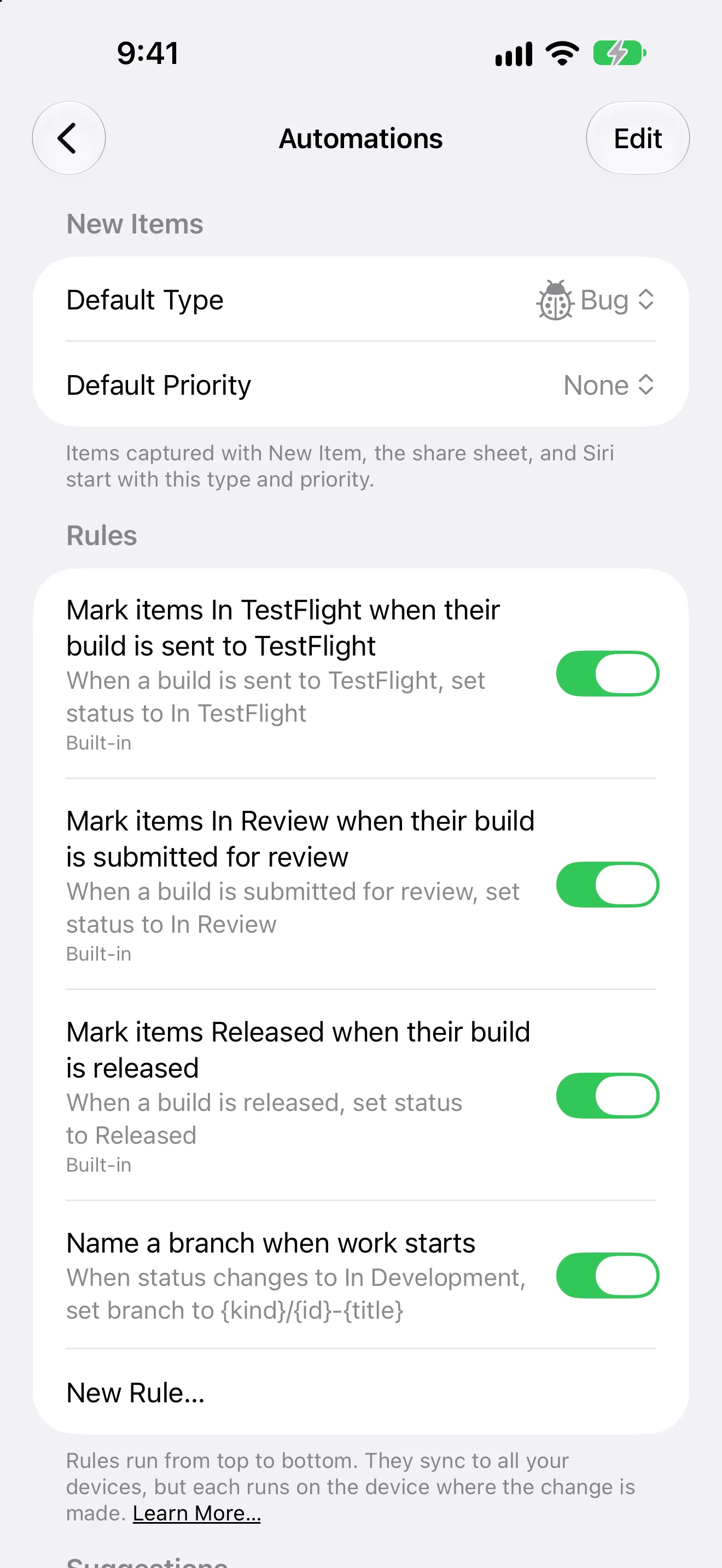
Rules move items for you when something happens. They sync to all your devices and run on the device where the change is made.
Built-in rules
Three rules are on from the start, so items follow their build.
- A build sent to TestFlight moves its items to In TestFlight.
- A build submitted for review moves its items to In Review.
- A released build marks its items Released.
Suggested rules
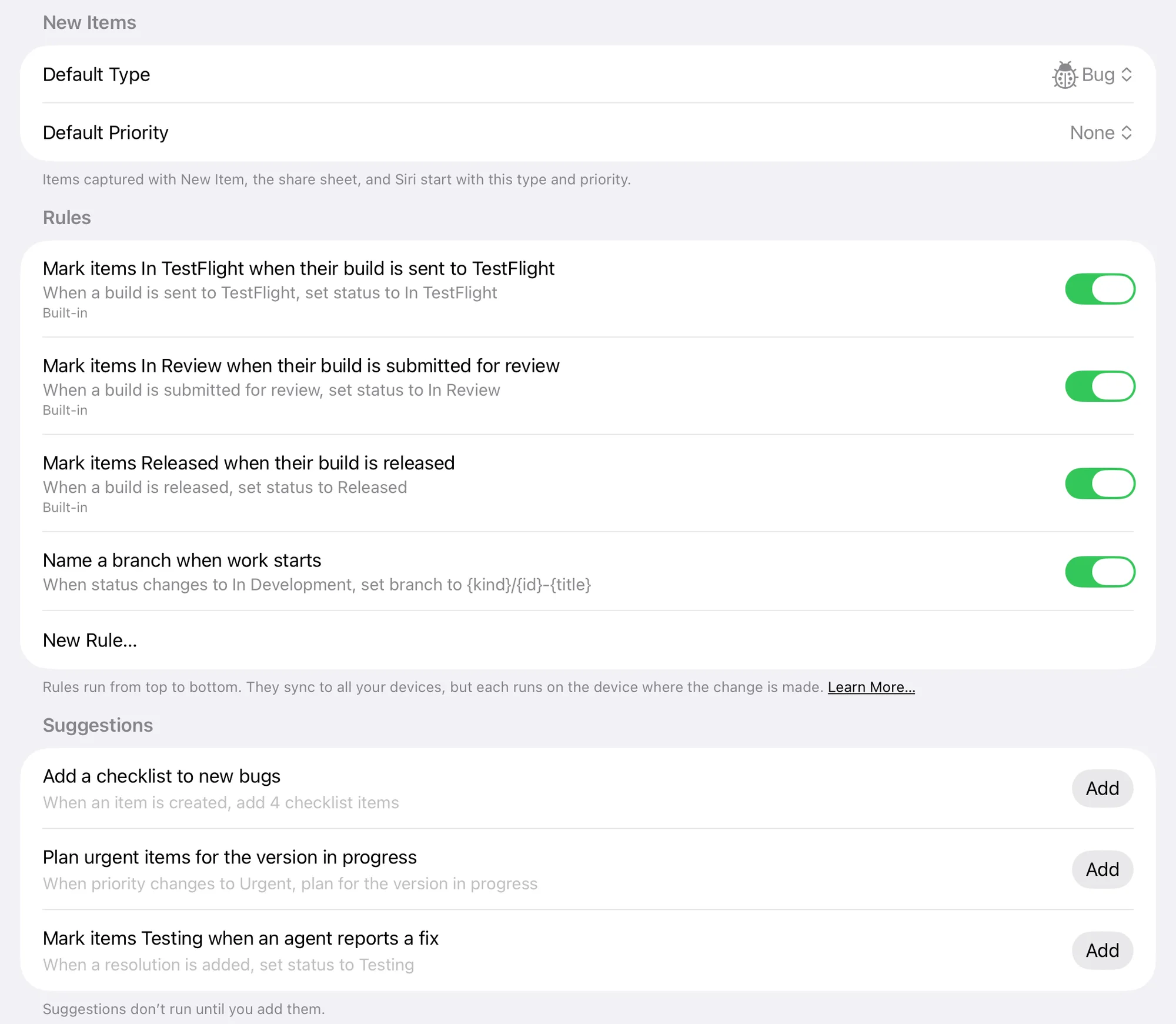
Settings ▸ Automations also suggests rules that don’t run until you add them.
- Name a branch when work starts
- When an item moves to In Development, fills in its branch name from your template.
- Add a checklist to new bugs
- Starts every bug with Reproduce, Find the cause, Fix, and Verify on device.
- Plan urgent items for the version in progress
- When an item’s priority changes to Urgent, plans it for the version you’re working on.
- Mark items Testing when an agent reports a fix
- When a Resolution is added to an item, moves it to Testing.
- If you delete a built-in rule, it comes back as a suggestion.
Make your own
- Open Settings ▸ Automations.
- Add a rule, or pick one of the suggestions.
- Choose when it runs, which items it applies to and what it does.
- Drag rules into order. They run from top to bottom.
When a rule runs
- Item Is Created
- A new item is added, from anywhere.
- Status Changes
- To any status, or to one you choose.
- Priority Changes
- To any priority, or to one you choose.
- Item Is Planned for a Version
- An item leaves the backlog.
- Checklist Is Completed
- Every step is checked.
- Resolution Is Added
- You or an agent record a cause and fix.
- Item Is Added to a Build
- A build is recorded with the item in it.
- Build Is Sent to TestFlight, Submitted for Review, Approved or Released
- A build moves along the pipeline. The rule applies to the items in that build.
Which items it applies to
Narrow a rule with conditions: Type Is, App Is, and Priority Is at Least. A rule with no conditions applies to every item.
What a rule does
- Set Status
- Moves the item to a status.
- Set Priority
- Changes the item’s priority.
- Add Checklist Items
- Adds steps to the item’s checklist.
- Set Branch Name
- Fills in the branch from your template. Clear Branch Name empties it.
- Plan for Version in Progress
- Moves the item to the version you’re working on.
- Move to Backlog
- Takes the item out of its version.
Good to know
- Automations only move items forward, and never change items marked Won’t Do.
- Changes a rule makes show in the item’s Activity, with the rule’s name.
- Automations don’t run when you import past releases from a history file.
- Defaults for new items, such as their type and priority, are in the same pane under New Items.