

Brand Assets
Each app has a Brand Assets library for its icons, screenshots, logos, press kit and any other file. Open the app and choose Assets.
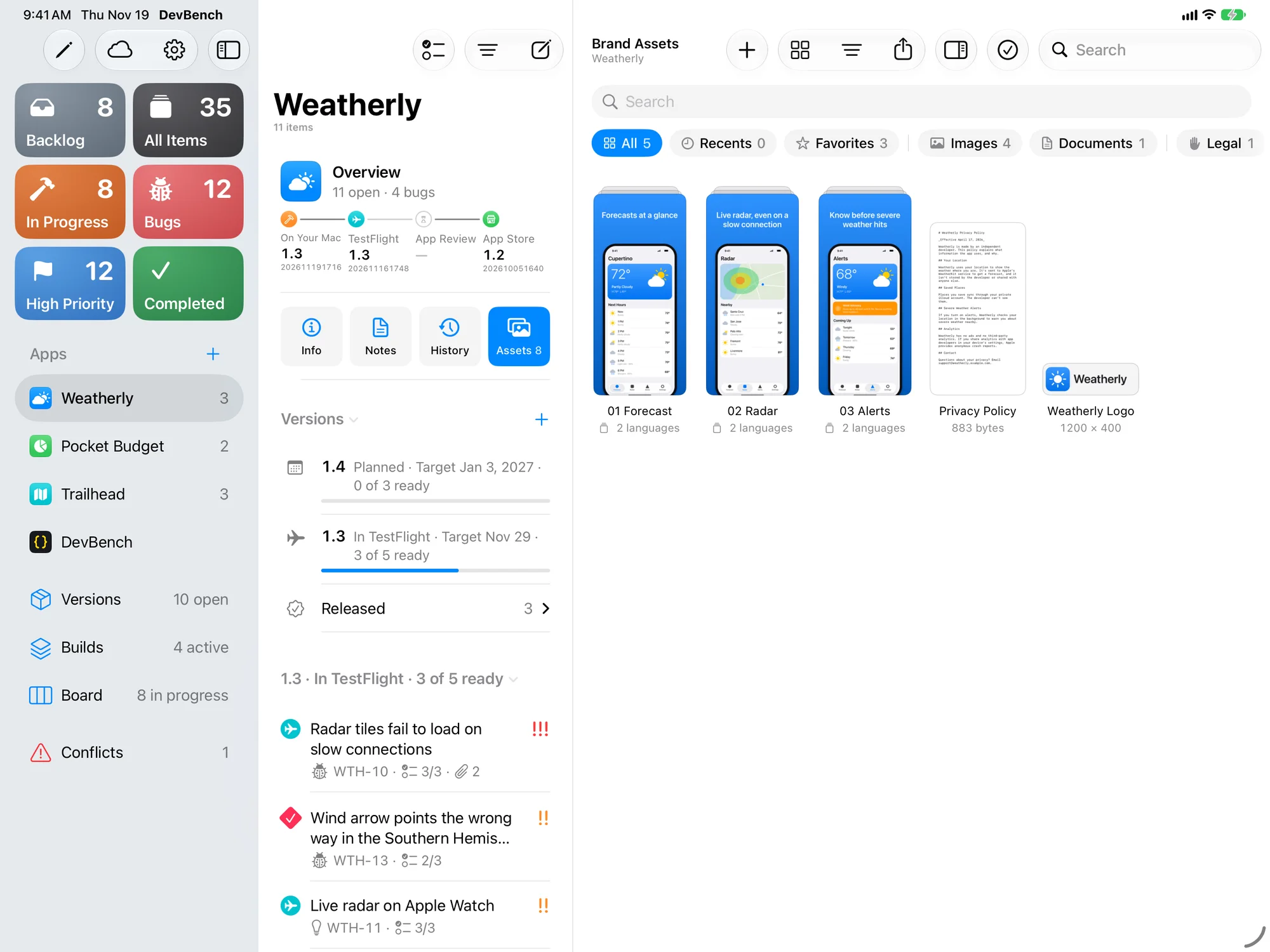
Add files
- Drag files onto the library, or choose Add Files… or Choose from Photos…, or paste.
- To add a screenshot from the share sheet, choose Brand Assets as the destination instead of a new item.
- DevBench keeps its own copy of each file, so moving or deleting the original doesn’t affect the library.
Find what you need
- The search field searches the whole library, whichever folder is open. Exact names come first.
- The chips under it narrow the library: All, Recents (added in the last 30 days), Favorites, kinds such as Images, Icons & Design, Videos and Documents, and your folders.
- Use the filter to show only one language or version.
Change how the library looks
Choose View Options.
- Layout
- Grid or List.
- Tile Size
- Small, Medium or Large.
- Sort By
- Name, Date Added, Kind or Size.
- Background
- Automatic, Light, Dark or Checkerboard, to judge artwork with transparency.
Folders and stacks
Folders group files, such as Screenshots or Press Kit, and can hold folders of their own. Choose New Folder… to make one, and Customize… to give it a color and symbol, or a cover from its images. A stack keeps variants of one file together, such as the same screenshot in eight languages.
- Select the files and choose Make Stack.
- Set each file’s language and version in the inspector.
- Choose Make Main File on the one that should show on the tile.
- Unstack turns a stack back into separate files.
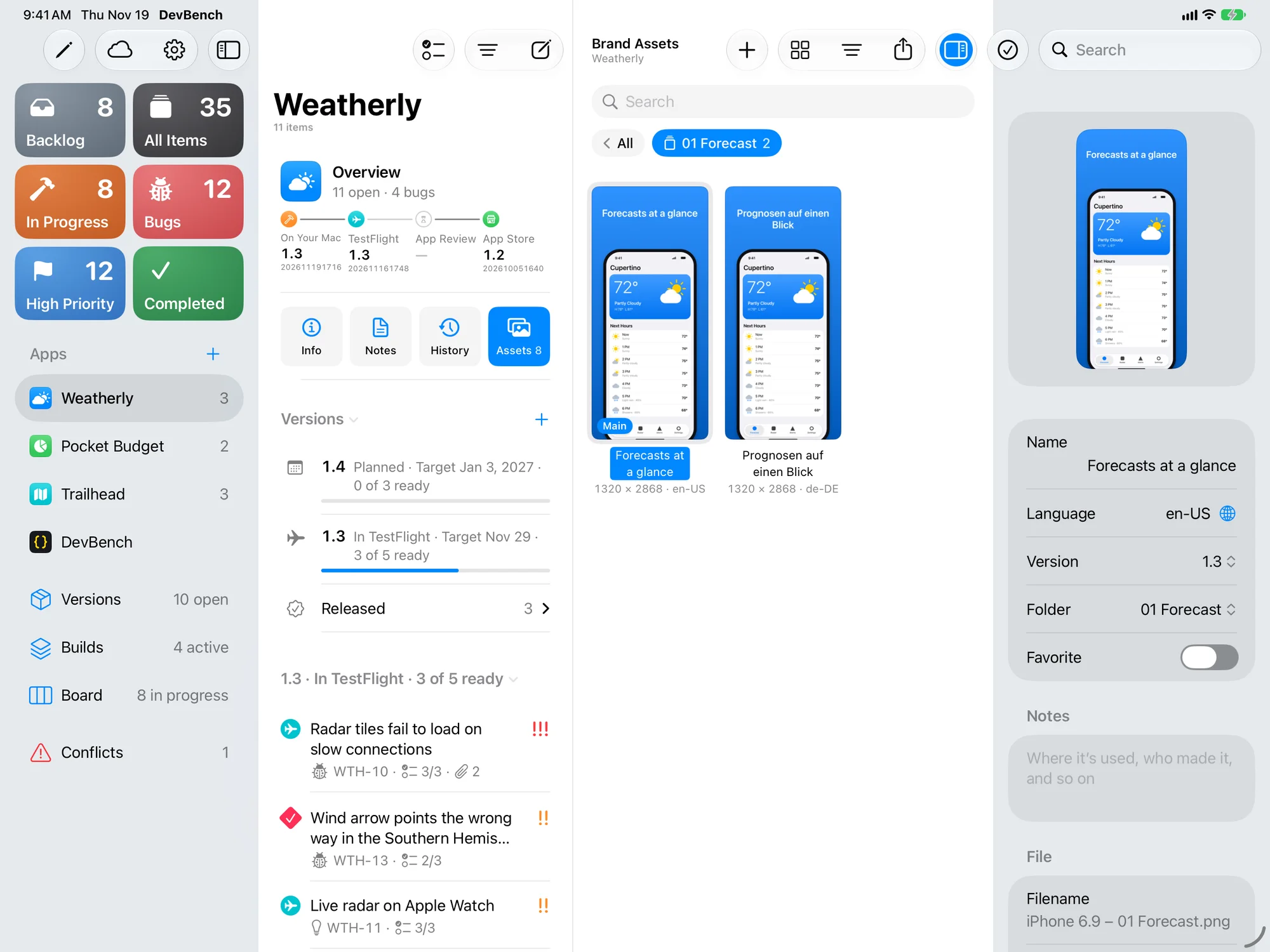
A file’s details
Select a file and show the inspector (⌥⌘I) to see and change its Name, Language, Version, Folder and Notes, along with the file’s kind, size and dimensions. Press Space to Quick Look it.
- Turn on Favorite for the files you reach for most. Favorites show on the app’s Overview, one tap from Quick Look.
Get files out
- Drag one file or a whole selection to the Finder, Files, Mail, Xcode or another app.
- Export… saves files to a folder you choose, with their folders. Share as Zip Archive… sends them as one file.
- Replace File… swaps in a new version of a file and keeps its details and folder.
- On iPhone and iPad, tap Select to choose several files.
Delete files
Deleted files and folders go to Recently Deleted, where you can recover them until they’re deleted permanently.