

Organize
Lists gather items across all your apps, each app’s page groups them by version, and the Board lays them out by status. Filter, sort and group any of them, and change many items at once.
Lists and the Board
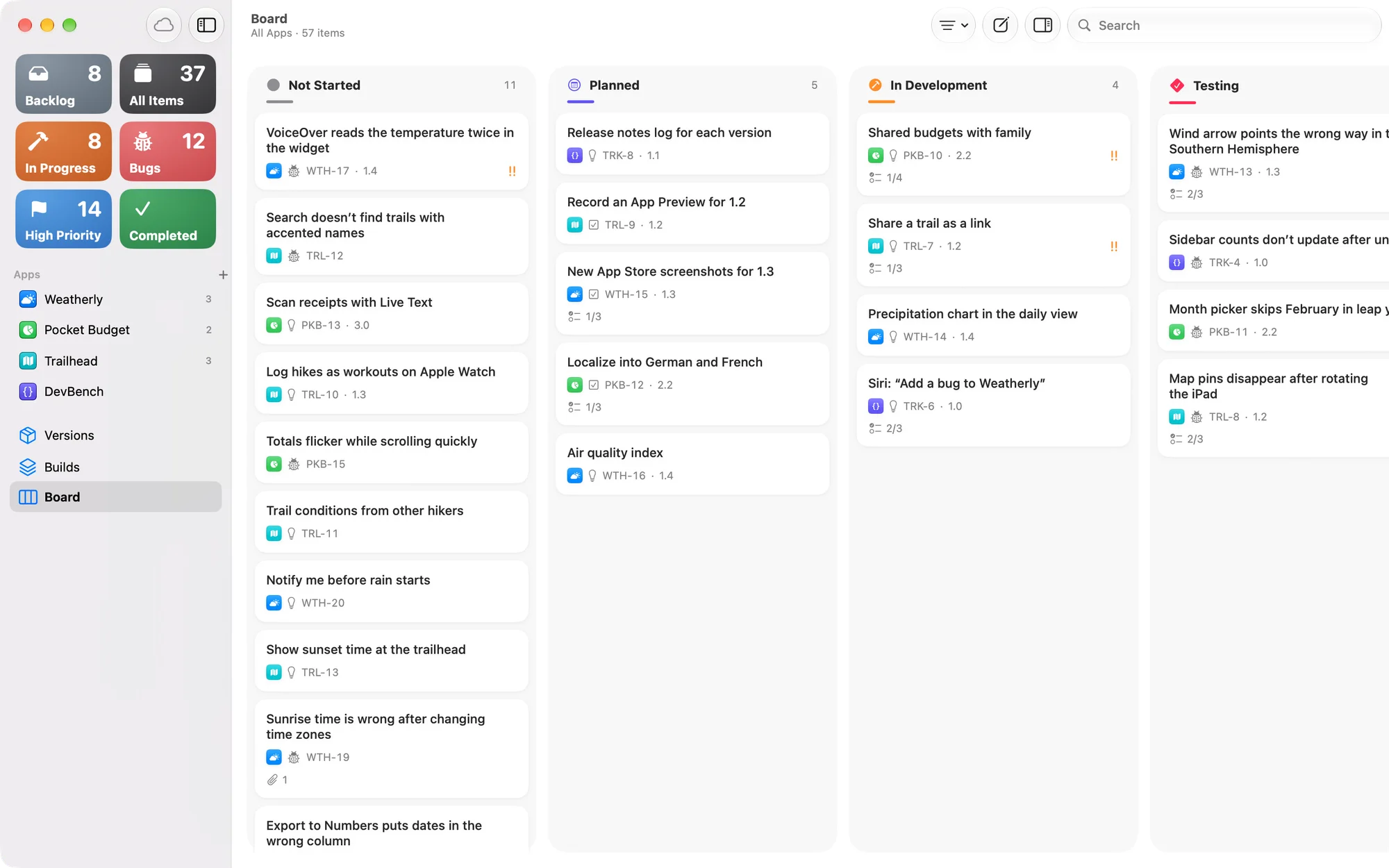
The sidebar has lists across all your apps, such as In Progress, Backlog, Bugs, High Priority and Completed, plus Versions, Builds and the Board, which shows items in columns by status. Each app has its own list, grouped by version.
Plan items for a version
New items wait in the backlog. To plan one, set its Version, or drag it onto a version in the app’s list. It becomes Planned. To take it back out, set its Version to Backlog.
Filter, sort and group a list
Choose View Options at the top of a list.
- Group By
- None, Status, Type, Priority, App or Version.
- Sort By
- Priority, Status, ID, Title, Date Created or Date Modified, in either order.
- Filters
- Type, Priority, Status, App, Version and Platform, plus Only with Attachments.
- Show Released and Won’t Do
- Brings finished items back into the list (⇧⌘H).
- The View Options button is filled in while a filter is on, so you can tell when a list isn’t showing everything.
- Reset View Options puts everything back.
The Board
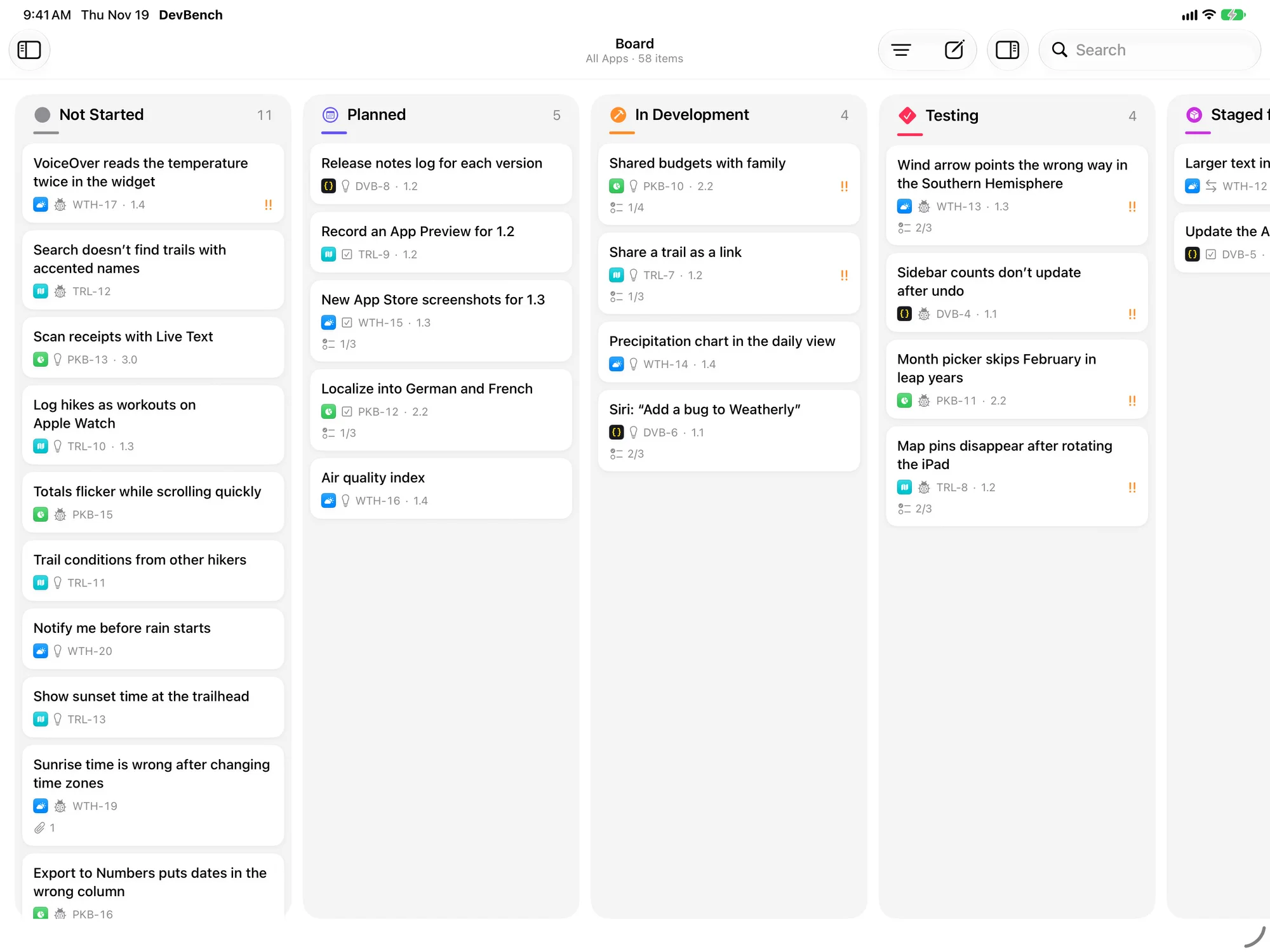
The Board shows items as cards in a column for each status. Drag a card to another column to change its status.
- Choose Filter to narrow the Board by App, Version, Type, Platform or Priority. Priority can be Any, Medium and Up, High and Up, or Urgent Only.
- Under Filter ▸ Columns, choose which statuses get a column.
- On Mac and iPad, Show Inspector opens the selected card’s details beside the Board.
Change several items at once
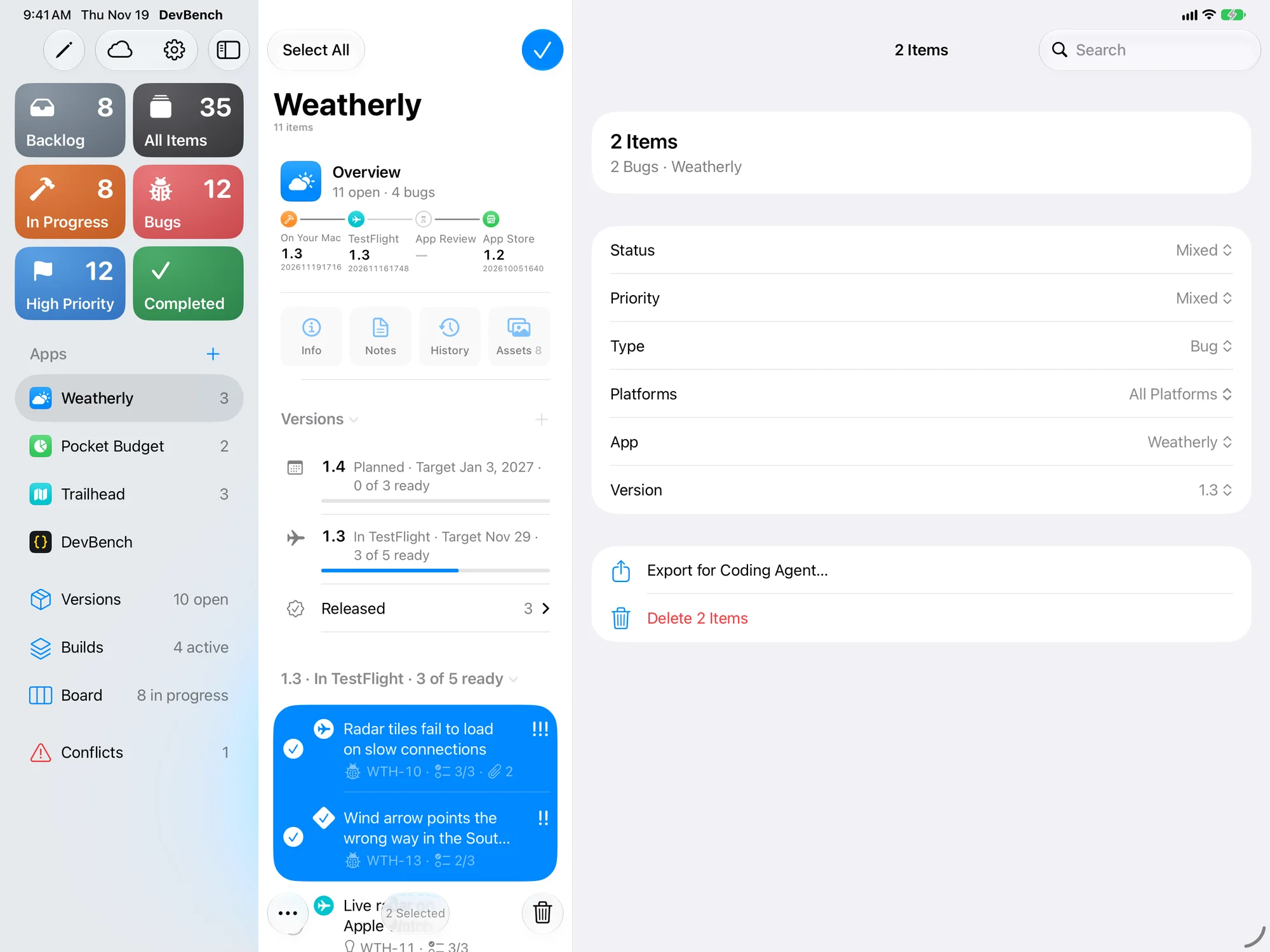
- On iPhone and iPad, tap Select, then tap the items. On Mac, Command-click or Shift-click them.
- Change Status, Priority, Type, Platforms, App or Version for all of them together.
- Or choose Export for Coding Agent…, Copy ID or Delete.
- Like any other change, a change to several items can be undone.
Drag and drop
- Drag items onto a version to plan them, or onto another app to move them there.
- Drag cards between the Board’s columns to change their status.
- Drop screenshots and files onto an item to attach them.
Find an item
Choose Search (⌘F) and type a title or an ID. An exact ID, like WTH-12, comes first as the Top Hit. Your items are in Spotlight too.