

Release notes
Write a one-line release note on each item as you finish it. DevBench assembles them for the version.
Write and copy the notes
- Open an item planned for a version and fill in its Release Note.
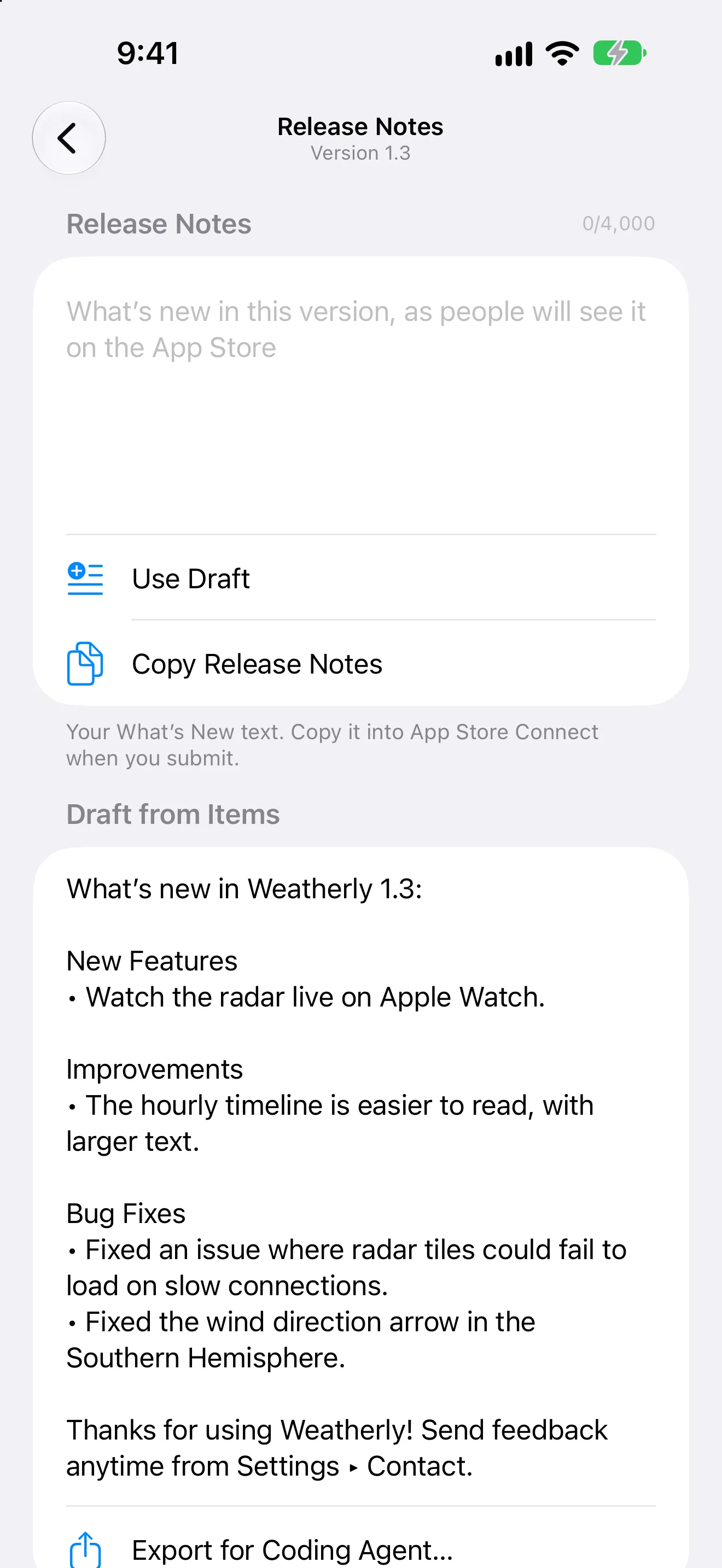
- Open the version and choose Release Notes. Draft from Items shows the notes compiled with the app’s release notes template.
- Choose Use Draft to start the version’s notes from the draft, then edit them. A counter tracks the App Store’s 4,000-character limit.
- Choose Copy Release Notes to copy them as people will see them, and paste them into What’s New in App Store Connect when you submit.
- The draft says how many items don’t have a release note yet.
- Notes are grouped by type: New Features for ideas, Improvements for changes, Bug Fixes for bugs, and Other Changes for tasks.
Every version’s notes in one place
Choose Notes on the app’s page to see the release notes of every version. Search them, choose Copy All, or choose Export Release Notes as Markdown for a file of the whole history.
Have an agent polish them
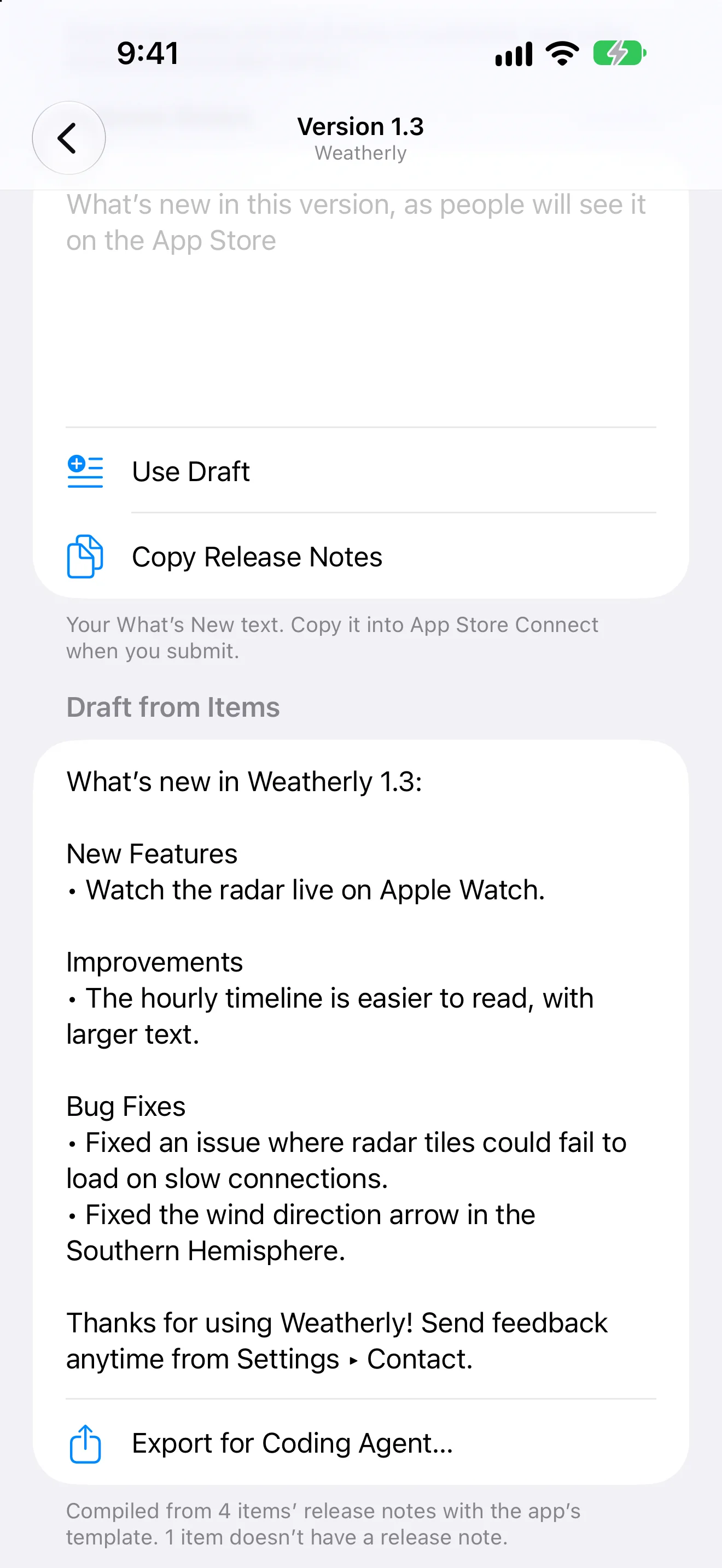
- Under Draft from Items, choose Export for Coding Agent… for a Markdown file with your prompt, the draft and the items, for any agent to rewrite.
- With an agent connected on Mac, Ask Your Agent gives you a command to copy and paste into Claude Code. The agent writes the notes from your release notes prompt, shows them to you, and saves them to the version.
- With other connected agents, ask them to “polish the DevBench release notes for Weatherly 1.3”.
Release notes template
App Info ▸ Templates sets how each app’s draft is laid out. The standard template is “What’s New in {version}”, followed by {features}, {improvements} and {fixes}.
- {app}, {version}, {build}, {date}
- The app’s name, the version number, the build number and the date.
- {features}
- Release notes from ideas, under New Features.
- {improvements}
- Release notes from changes, under Improvements.
- {fixes}
- Release notes from bugs, under Bug Fixes.
- {other}
- Release notes from tasks, under Other Changes.
- {items}
- Every release note in one list.
- Lines with nothing to list disappear from the draft.
- If a type isn’t in the template, its notes are left out of the draft, and DevBench tells you which. Add its placeholder to the template to include them.
- Use Default puts the standard template back.
What to Test template
The same pane has a template for TestFlight’s What to Test. It uses {app}, {version}, {build}, {date} and {items}, and starts as “Build {build} of version {version}. Please test:” followed by {items}. There, {items} lists the build’s items by their release notes, or by their titles when they have none.