

Settings
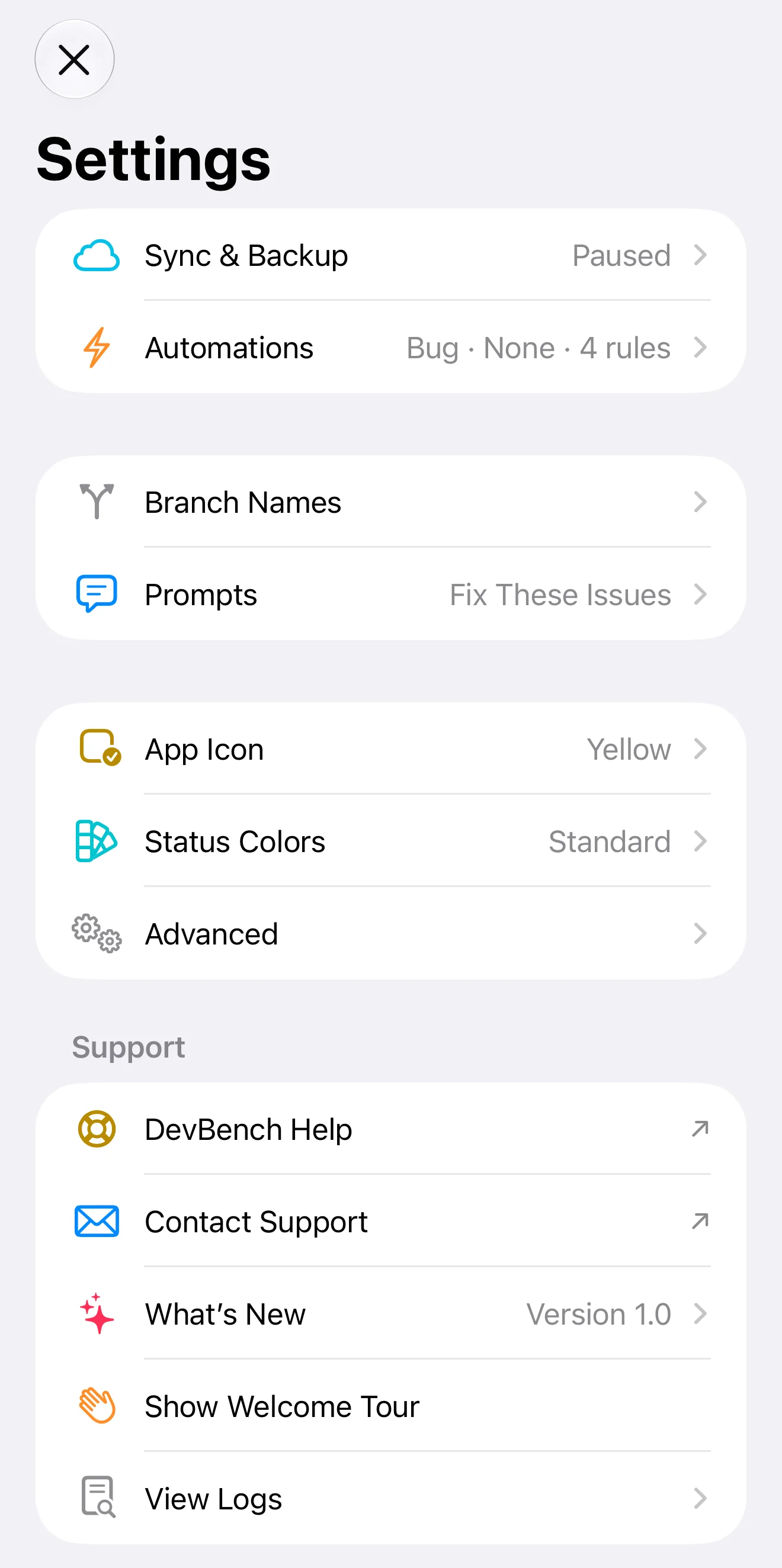
On Mac, choose DevBench ▸ Settings (⌘,). On iPhone and iPad, tap the Settings button, the gear at the top of the sidebar.
Where each setting is
- General
- Branch Names, Status Colors, DevBench Help, What’s New and the Welcome Tour. On iPhone and iPad, Branch Names and Status Colors have rows of their own.
- Automations
- Defaults for new items, and the rules that move items for you.
- Prompts
- The instructions that go to your coding agent.
- Coding Agents
- On Mac. Setting up coding agents, the server they connect to, and what they may do.
- Sync & Backup
- iCloud sync, Recently Deleted and backups.
- Advanced
- Logs, sync tools, Spotlight, widgets and Erase Library.
- App Icon
- On iPhone and iPad. DevBench’s own icon on the Home Screen.
AutomationsPromptsCoding agents (MCP)Sync & backup
Branch names
Settings ▸ General ▸ Branch Names sets the template DevBench uses to suggest a branch name in each item’s Branch field, for you to copy. It doesn’t create the branch. The standard template is {kind}/{id}-{title}, which makes names like fix/wth-12-radar-tiles-fail-to-load. The Example under the field shows what yours will produce.
- {id}
- The item’s ID, such as wth-12.
- {number}
- The item’s number, such as 12.
- {kind}
- fix, feature, change or task.
- {title}
- The title in lowercase, with dashes.
- Use Default puts the standard template back.
Status colors
Each status shows in its color wherever it appears: beside items, on the Board and in menus. Choose a color for any status in Status Colors (under General on Mac), where each status also says what it means. Restore Standard Colors puts them all back.
Defaults for new items
Settings ▸ Automations ▸ New Items sets the Default Type and Default Priority. Items captured with New Item, the share sheet and Siri start with them.
DevBench’s own icon
On iPhone and iPad, Settings ▸ App Icon changes DevBench’s icon. Choose an Icon Color (Red, Orange, Yellow, Green, Blue, Indigo or Violet) and an Icon Style (Automatic, Light or Dark), then choose Use This Icon.
Advanced
- View Logs
- Activity and problems from the last 14 days. Export Diagnostics saves the log with a summary of iCloud sync. Clear Log removes it from the device.
- Upload All Data to iCloud
- Copies everything on this device to iCloud again.
- Download Everything Again
- Downloads everything from iCloud again, such as when a device is missing something. Data on this device is kept.
- Import Share Sheet Captures
- Brings in captures from the share sheet that are still waiting. DevBench does this itself each time it opens.
- Empty Recently Deleted
- Permanently deletes everything in Recently Deleted.
- Reset Tips
- Shows every tip again, as on a new device.
- Rebuild Spotlight Index
- Adds your items and apps to Spotlight again, such as after a search stopped finding them.
- Reload Widgets
- Gives widgets and controls the latest data.
- Erase Library
- Removes everything from this device and from iCloud, and starts DevBench over.
Help, What’s New and the welcome tour
- On Mac, the Help menu has DevBench Help (⌘?), Help Topics, Contact Support…, Welcome Tour, What’s New in DevBench and Diagnostics…
- On iPhone and iPad, Settings ▸ Support has DevBench Help, Contact Support, What’s New, Show Welcome Tour and View Logs.
- What’s New shows the version of DevBench you have and what changed in it.