

Find your way around
DevBench has three parts: a sidebar of lists and apps, the list you chose, and the details of what’s selected. On iPhone they’re three screens. On iPad and Mac they sit side by side.
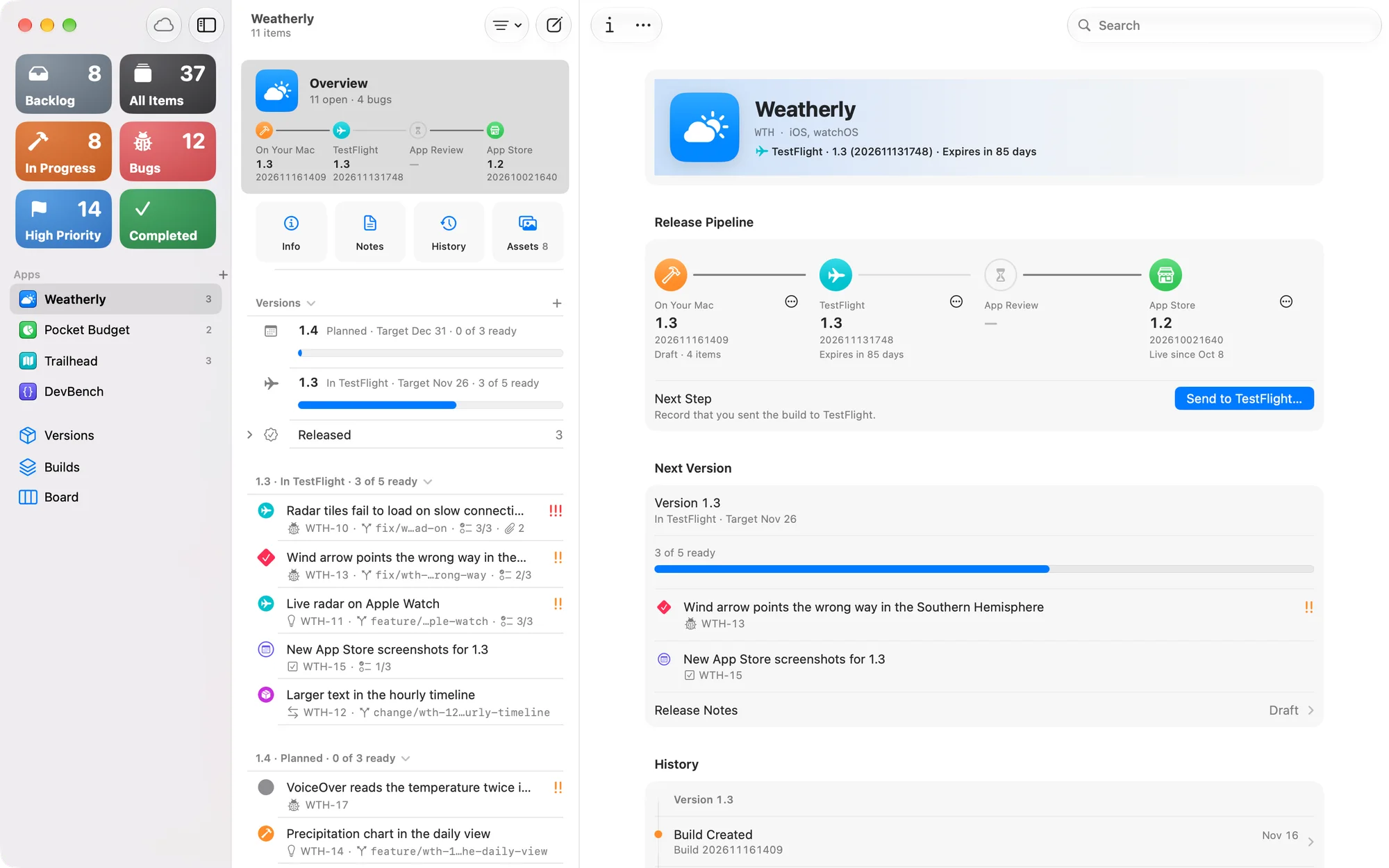
The sidebar
The sidebar has three sections, in an order you can change. On iPhone it’s DevBench’s main screen, and each app shows as a card that says where the app stands.
- Smart Lists
- Tiles that gather items from every app: In Progress, Backlog, All Items, Bugs, High Priority and Completed.
- Releases
- Versions, Builds and the Board. Their counts are versions not yet released, builds in TestFlight or App Review, and items in development or testing.
- Apps
- Your apps, each with a count you choose, such as its open items. Archived apps are tucked under Archived at the end.
- A Conflicts row appears at the end while there are sync conflicts to review.
- On iPhone and iPad, the buttons at the top of the sidebar are Edit, sync status and Settings. On Mac, choose DevBench ▸ Settings.
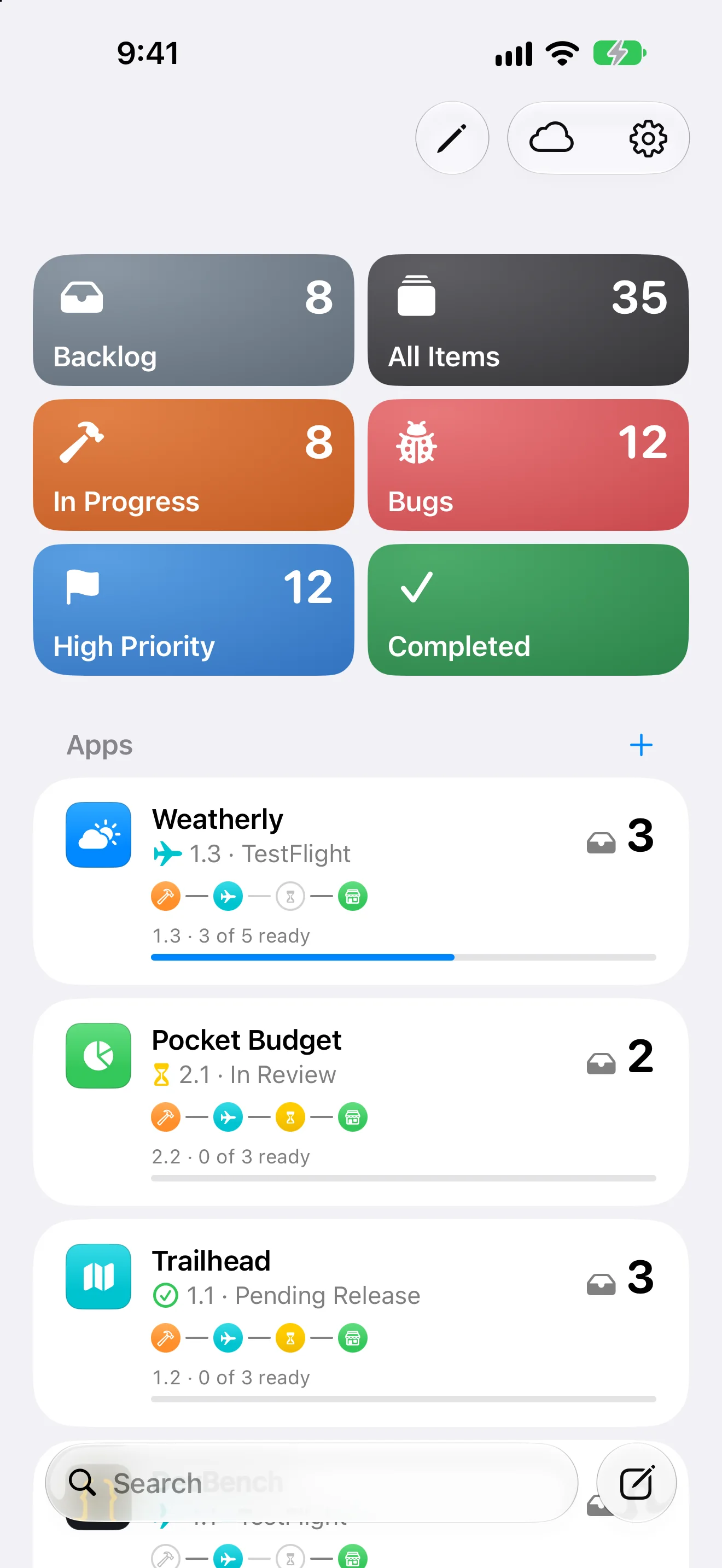
Smart lists
- In Progress
- Items you’re developing or testing: In Development and Testing.
- Backlog
- Items that aren’t planned for a version and haven’t been started. Once work starts, an item moves to In Progress.
- All Items
- Every open item, in every app.
- Bugs
- Bugs, until they’re released or marked Won’t Do.
- High Priority
- Open items with High or Urgent priority.
- Completed
- Released items and items marked Won’t Do.
- On Mac and on iPad with a keyboard, the Go menu opens any list: ⌘1 In Progress, ⌘2 All Items, ⌘3 Backlog, ⌘4 Versions, ⌘5 Board, ⌘6 Bugs, ⌘7 High Priority, ⌘8 Completed.
An app’s page
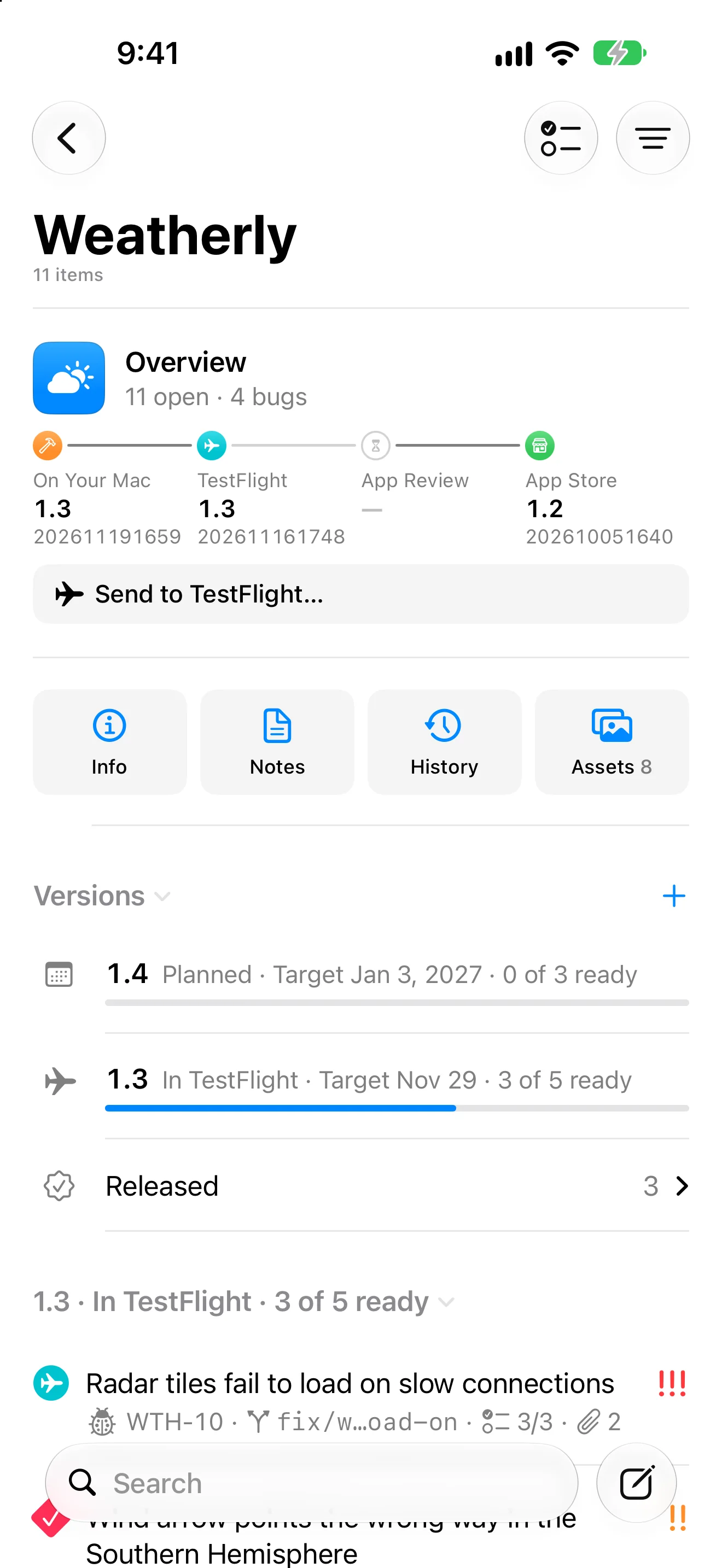
Choose an app to see everything about it in one list.
- Overview
- The first row: the app’s open counts, where its build is, and its release pipeline at a glance. It opens the app’s Overview.
- Info, Notes, History, Assets
- Four tiles that open App Info, Release Notes, Release History and Brand Assets.
- Versions
- Versions still to come, newest first, each with how much of it is ready. Released and Cancelled versions are grouped beneath, collapsed until you open them.
- Items
- The app’s items, grouped by the version they’re planned for, with the backlog last.
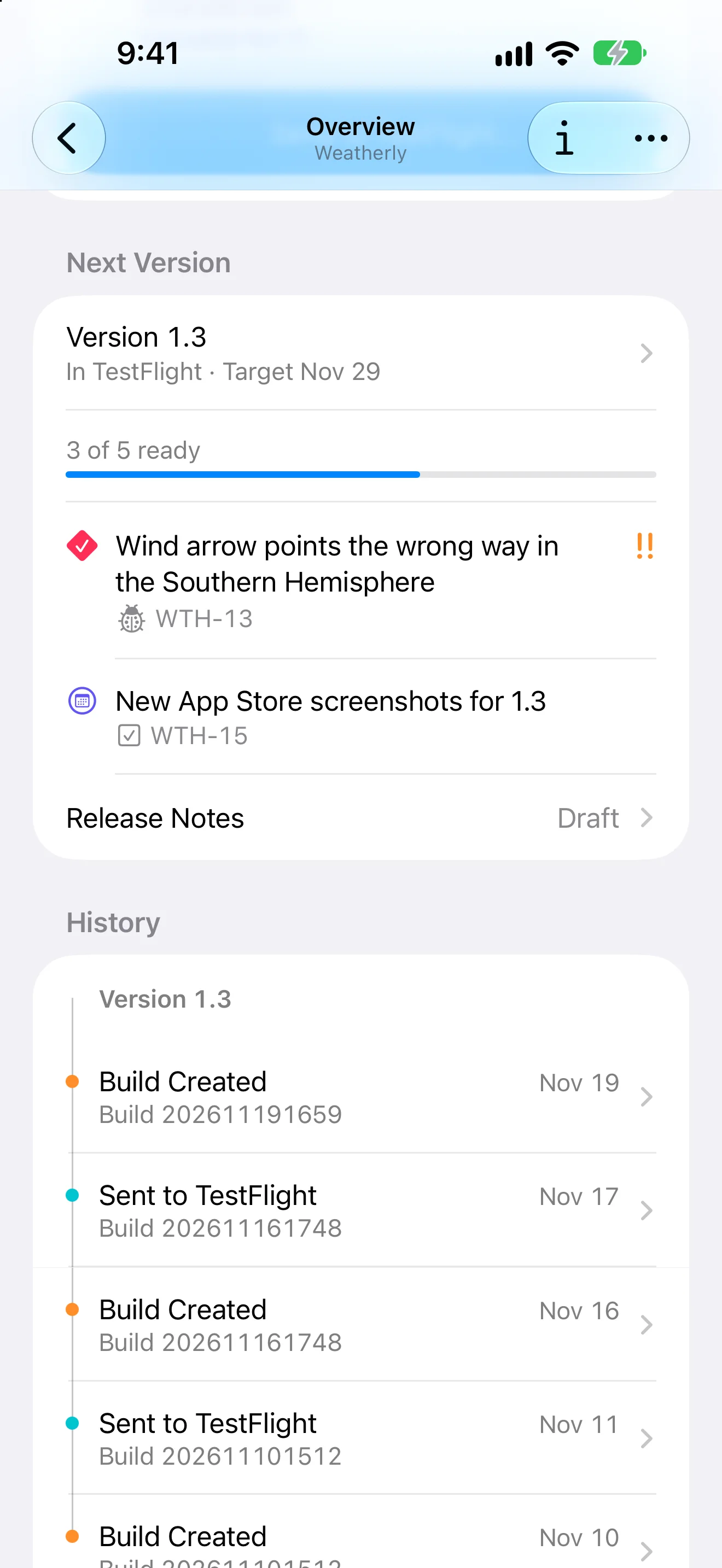
The Overview
An app’s Overview (⌘0) is its dashboard: the release pipeline with its Next Step, the next version and how ready it is, recent release history, your favorite brand assets, and links to the app’s public pages.
Search
Choose Search (⌘F) and type a title or an ID. An exact ID, like WTH-12, comes first as the Top Hit.
- Brand Assets has its own search field, which searches that app’s whole library.
- Your items and apps are in Spotlight too, so you can search from outside DevBench.
Customize the sidebar
- On iPhone and iPad, tap Edit, the pencil at the top of the sidebar. On Mac, choose View ▸ Edit Sidebar…
- Show or hide smart lists and drag them into order. At least one list stays in the sidebar.
- Drag the Smart Lists, Releases and Apps sections into the order you want, and Versions, Builds and the Board within Releases.
- Turn Show Counts on or off for the Releases rows, and choose what each app’s count shows: Open Items, Backlog, In Progress, Bugs, High Priority or None.
- On Mac, View ▸ Show Smart List turns single lists on and off.
- To reorder apps, drag them, or use Move Up and Move Down.
More than one window
On Mac and iPad, choose File ▸ New Window (⌥⌘N) for a second DevBench window, or Open in New Window (⌘O) to give the selected app or item a window of its own. It’s handy for keeping an item in view while you work through a list.
Undo
Almost everything you do in DevBench can be undone, including release moves, bulk changes, imports and changes made from Siri or Shortcuts. A few actions that remove things for good, such as Delete Now in Recently Deleted, say so before they happen.